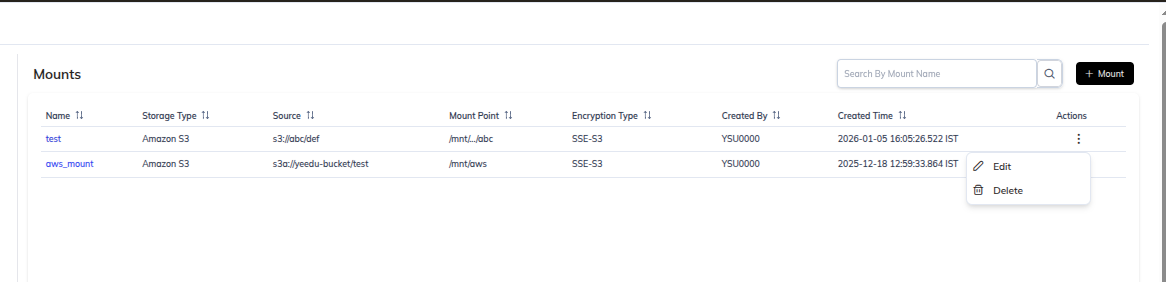
Creating Mounts
Overview
Mounts allow you to attach external storage locations to your Yeedu clusters. This enables secure, read-only access to data stored on:
- Cloud storage (S3, Azure Blob Storage, GCS)
Steps to Create a Mount
1. Navigate through UI
- Click Profile in the top-right corner
- Click Settings
- In the Settings menu, choose Mounts
- Click Create Mount
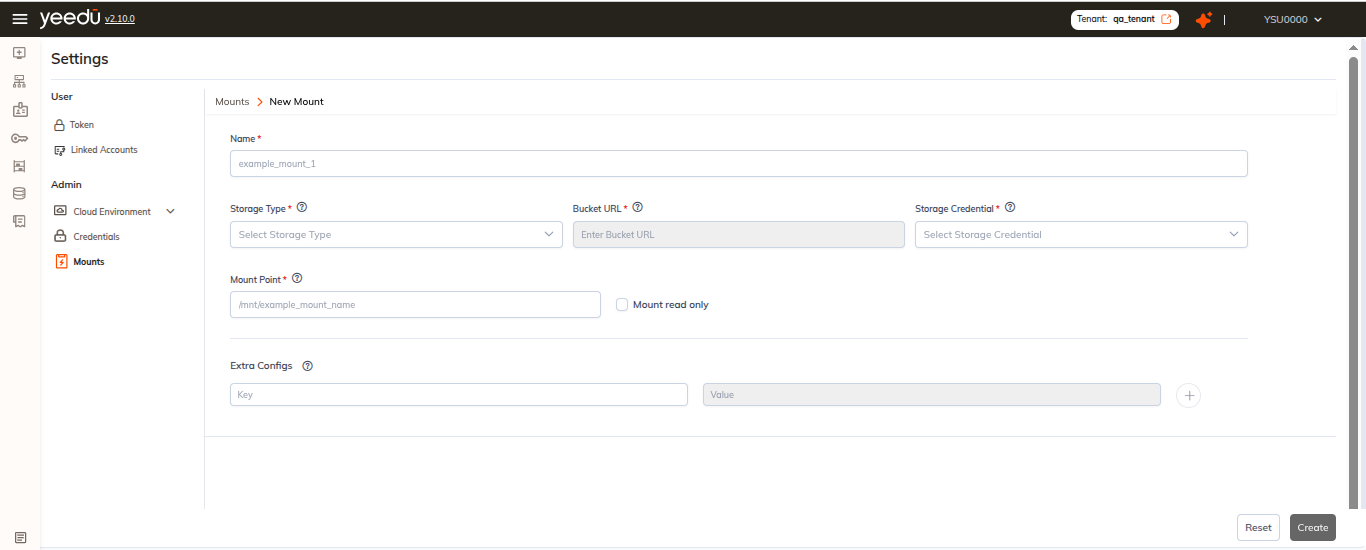
2. Basic Configuration
Enter the following information in order:
| Field | Description | Required |
|---|---|---|
| Mount Name | Unique identifier for the mount | Yes |
| Storage Type | Select a provider (S3/Azure/GCS) | Yes |
| Storage Credential | Choose or create a credentials secret | Yes |
| Mount Point | Local path in cluster where storage will mount e.g. /mnt/example_mount_name | Yes |
| Bucket URL | Storage bucket or container URL (e.g. s3://..., abfs://...) | Yes |
| Extra Configs | Optional provider-specific parameters | No |
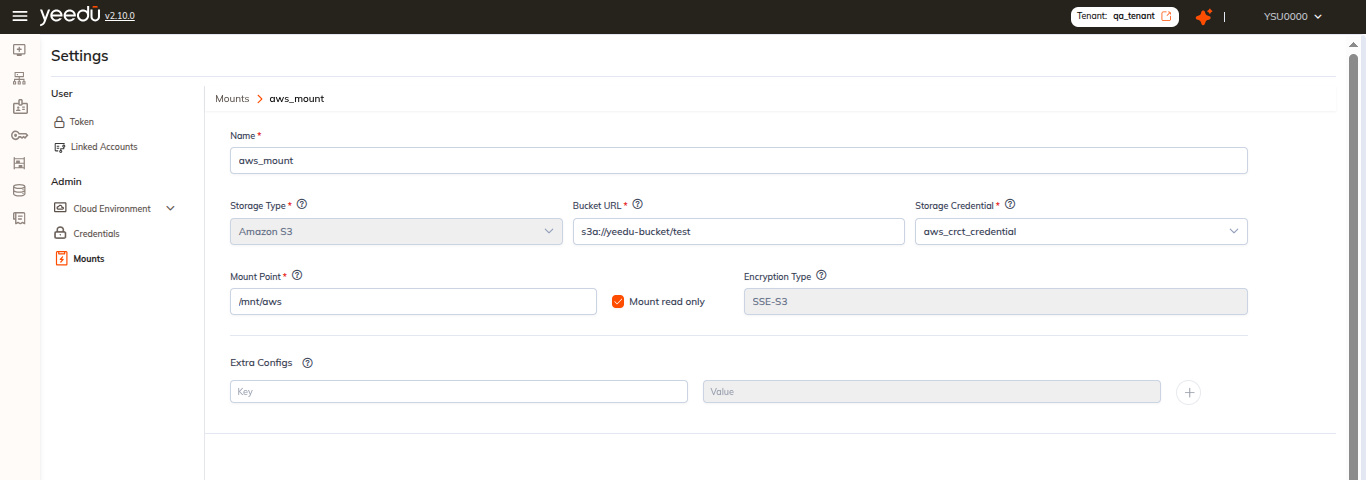
3. Access Mode
- Mount Read Only: Default toggle is set to mount read-only
4. Storage Configuration
Select your storage provider and configure:
Amazon S3
- Bucket Name: S3 bucket to mount
- Path Prefix: Specific path within bucket (optional)
- AWS Region: AWS region where bucket is located
- Access Mode: Read-only
Azure Blob Storage
- Container Name: Azure container to mount
- Storage Account: Azure storage account name
- Path Prefix: Specific path within container (optional)
- Access Mode: Read-only
Google Cloud Storage
- Bucket Name: GCS bucket to mount
- Path Prefix: Specific path within bucket (optional)
- Project ID: GCP project ID
- Access Mode: Read-only
4. Authentication
Configure credentials required for storage access:
-
Select Credential Type:
- Select existing credential from drop down
- New Credentials: Create from credential section from credentials tab
-
Provide necessary authentication:
- For S3: AWS Access Key ID and Secret Access Key
- For Azure: Storage Account Key or Connection String
- For GCS: Service Account JSON
5. Extra Configuration
Add custom mount parameters:
- Click Add Extra Config
- Enter key-value pairs for provider-specific options
- Examples:
- S3:
ssl=true,requester_pays=false - Azure:
ssl=true,block_size=65536 - NFS:
nolock=true,vers=3
- S3:
6. Review and Create
- Review all configuration
- Click Create Mount
- Mount is validated and created
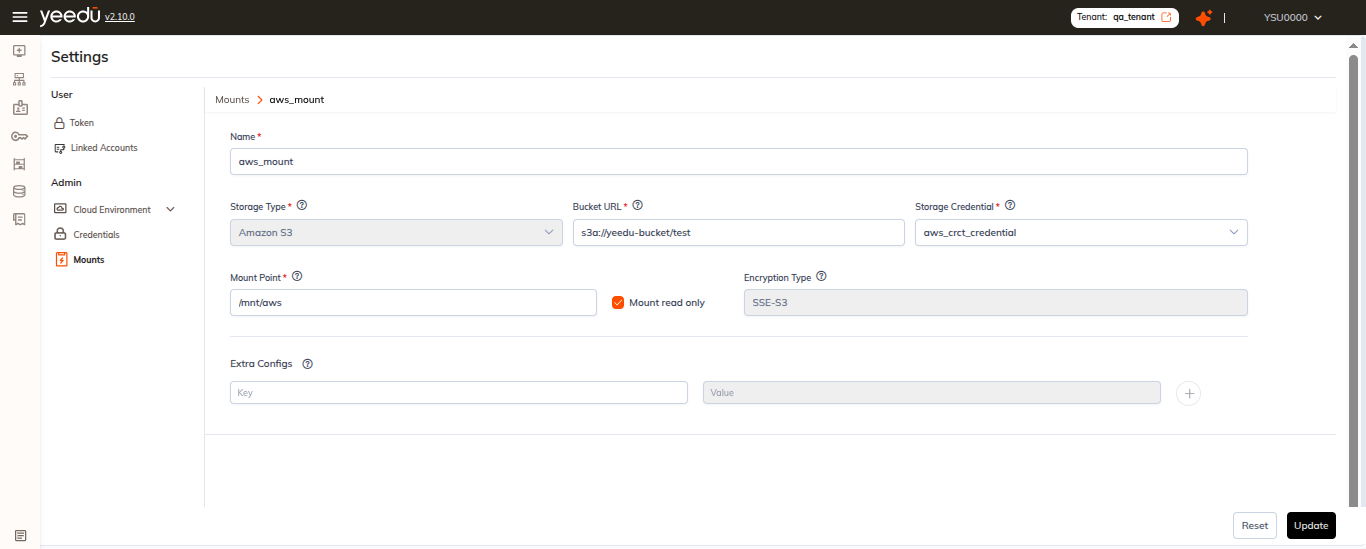
After Creation
Once created, the mount:
- Appears in the Mounts list
- Is available to assigned clusters
- Can be used in jobs and notebooks
- Can be edited or deleted at any time