Git Credentials
The Git Credentials feature allows users to securely connect their Git provider accounts to the platform. By linking Git credentials, users can access repositories directly from the workspace, enabling operations such as creating Git folders, syncing repositories, and managing code files within the platform.
Currently, the platform supports GitHub as the Git provider. Support for additional providers such as GitLab, Bitbucket, and Azure DevOps Services will be introduced in future versions.
Navigating to Git Credentials
To configure Git credentials, follow these steps:
- Navigate to Settings.
- Click Linked Accounts under the User section.
- The Git credential configuration interface will appear.
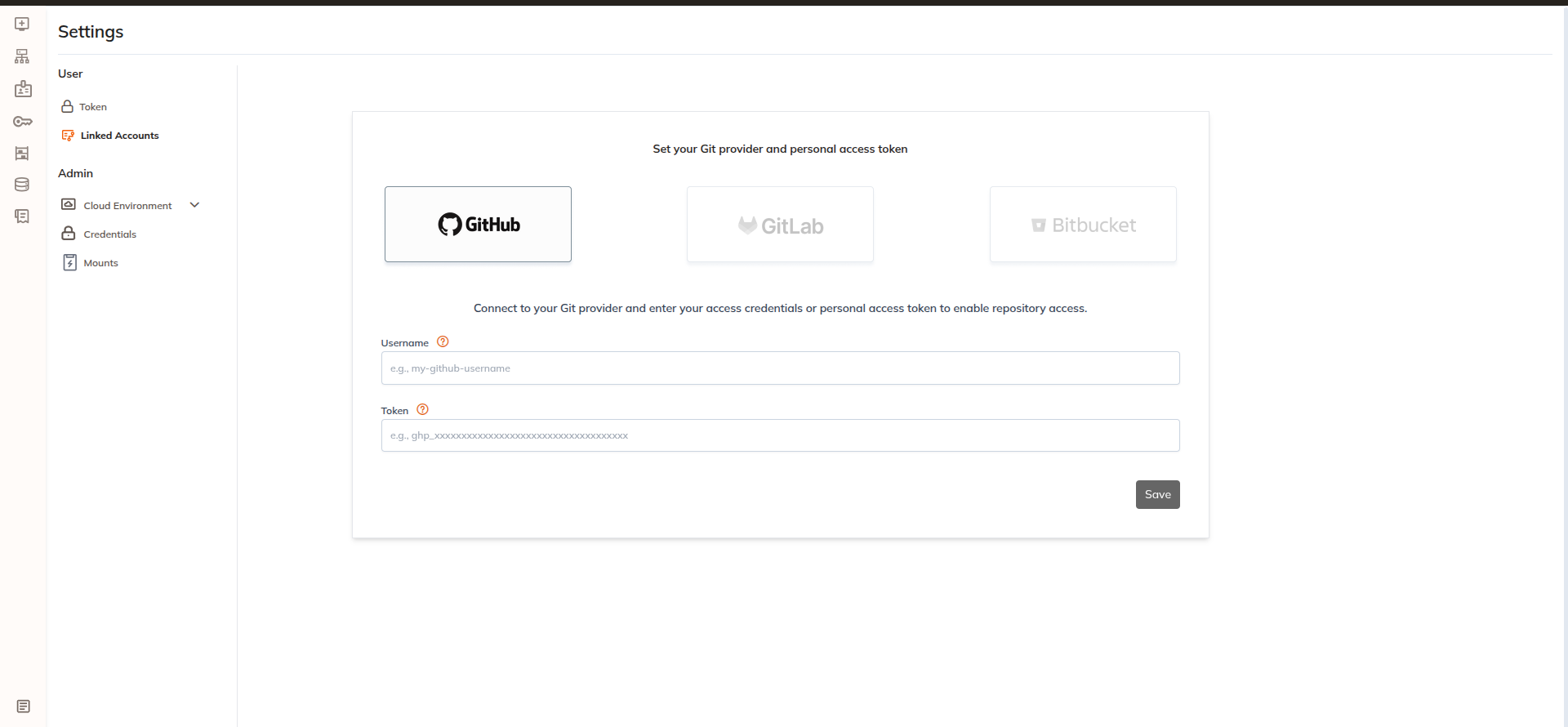
Creating Git Credentials
To create a Git credential:
- Go to Settings → Linked Accounts.
- Select GitHub as the Git provider.
- Enter the required information:
- Username
- Token (GitHub Personal Access Token)
- Click Save to create the credential.
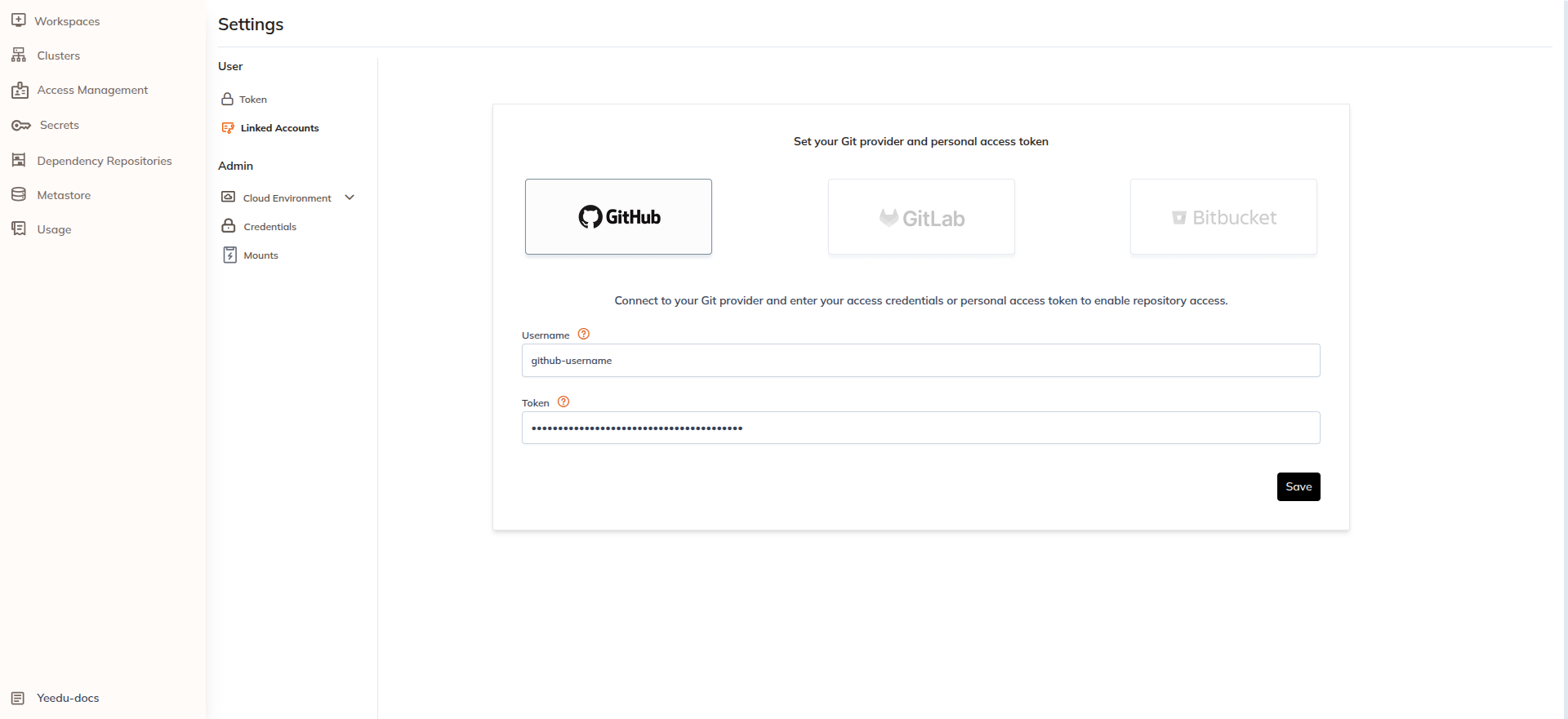
Once the credentials are successfully created, the platform will securely store them and enable repository access for Git-related operations.
Username Requirements
The GitHub username must follow GitHub's username rules:
- It can contain letters, numbers, and single hyphens.
- It must start and end with a letter or number.
- Consecutive hyphens are not allowed.
- The length must be between 1 and 39 characters.
Token Requirements
The GitHub token must follow the format defined by GitHub:
-
Classic Personal Access Token (PAT)
Starts withghp_followed by 36 alphanumeric characters. -
Fine-grained Personal Access Token
Starts withgithub_pat_followed by:- 22 alphanumeric or underscore characters
- an underscore
_ - 59 alphanumeric or underscore characters
Ensure the token has sufficient permissions to access the required repositories.
Editing Git Credentials
After creating the credentials, users can update them if required.
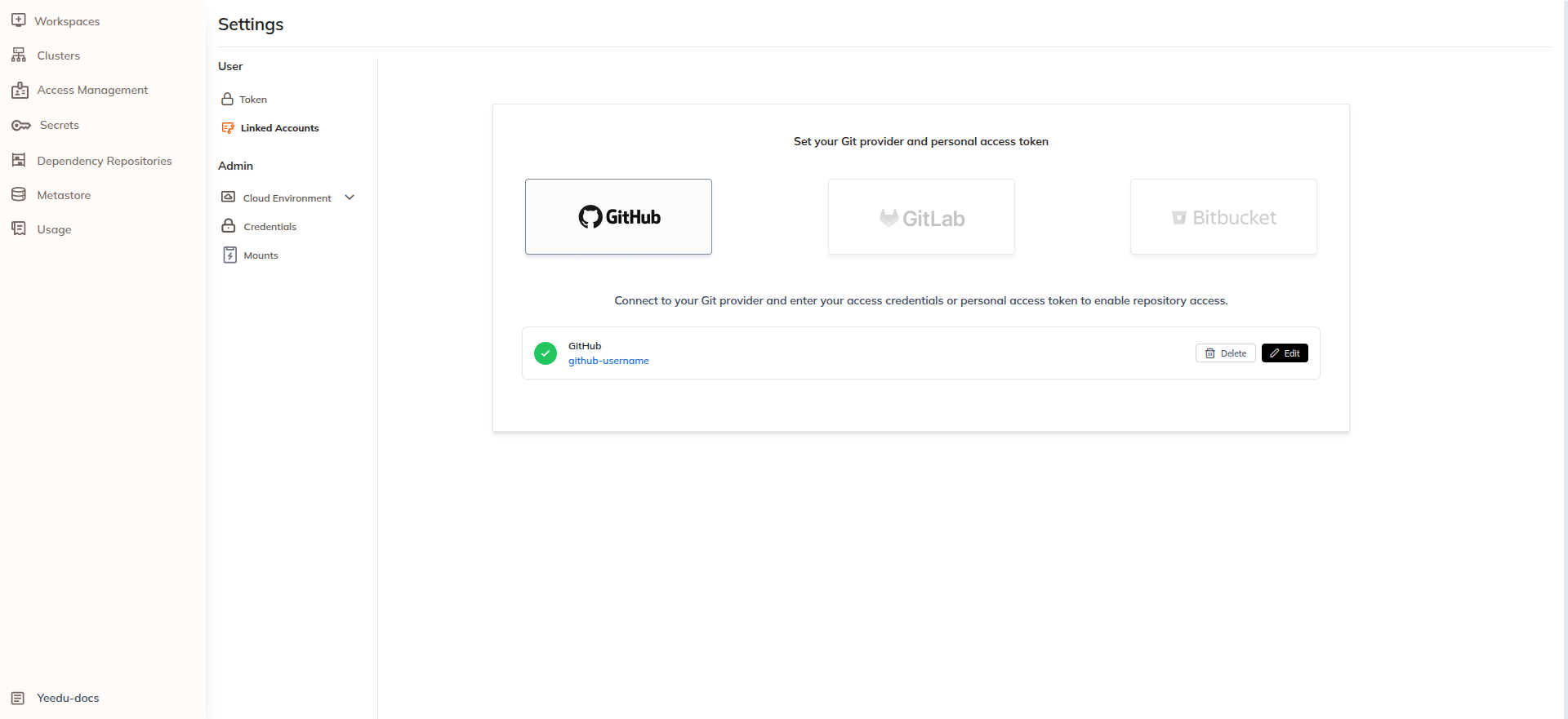
To edit credentials:
- Click the Edit button next to the credential.
- Modify the necessary fields.
- Enter the token again for security verification.
- Click Save to apply the changes.
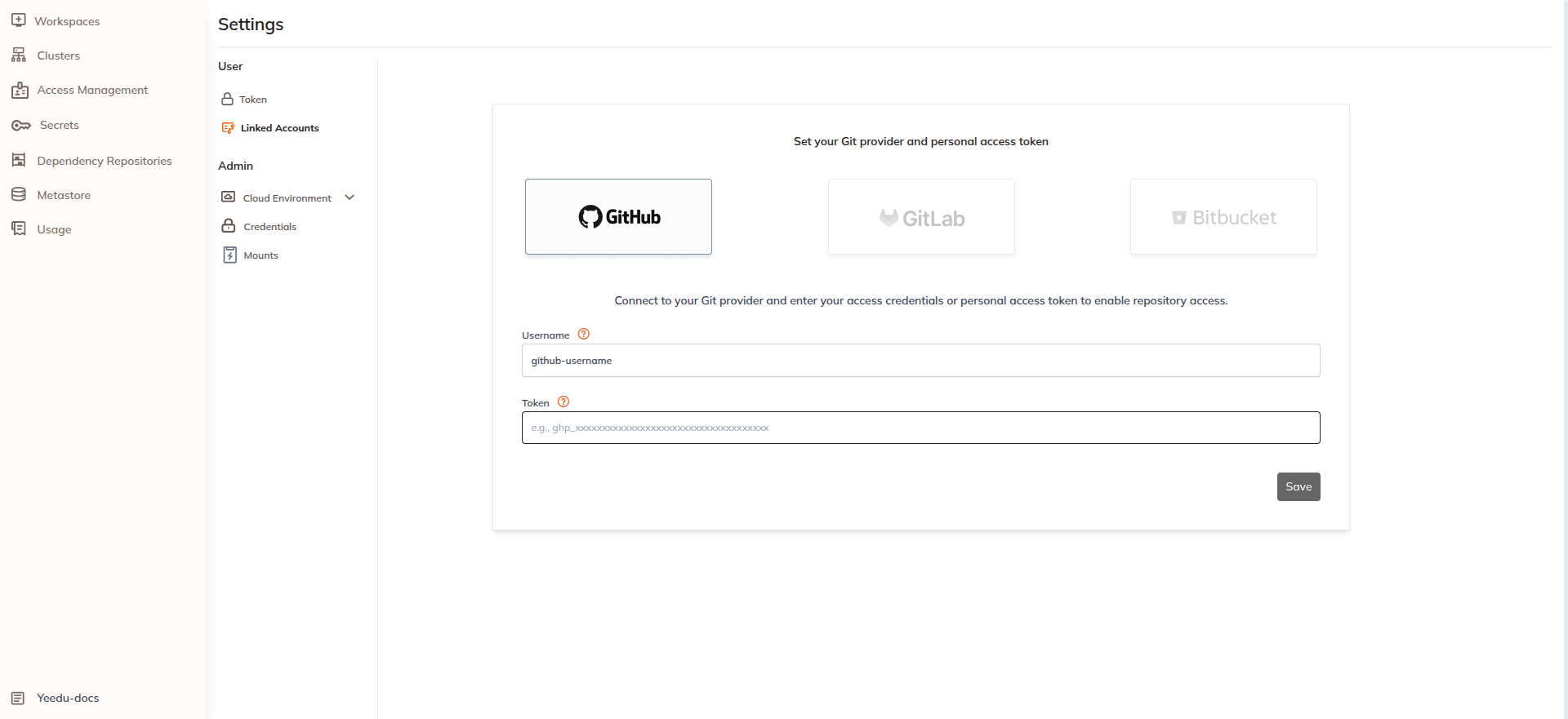
The username may remain the same or can be edited depending on configuration, but the token must always be provided again when editing credentials.
Deleting Git Credentials
Users can disable or delete their Git credentials when they are no longer required.
To delete credentials:
- Click the Delete button for the credential.
- A confirmation popup will appear.
- Type the GitHub username to confirm the action.
- Click I understand the consequences, disable this git credential.
Example confirmation popup:
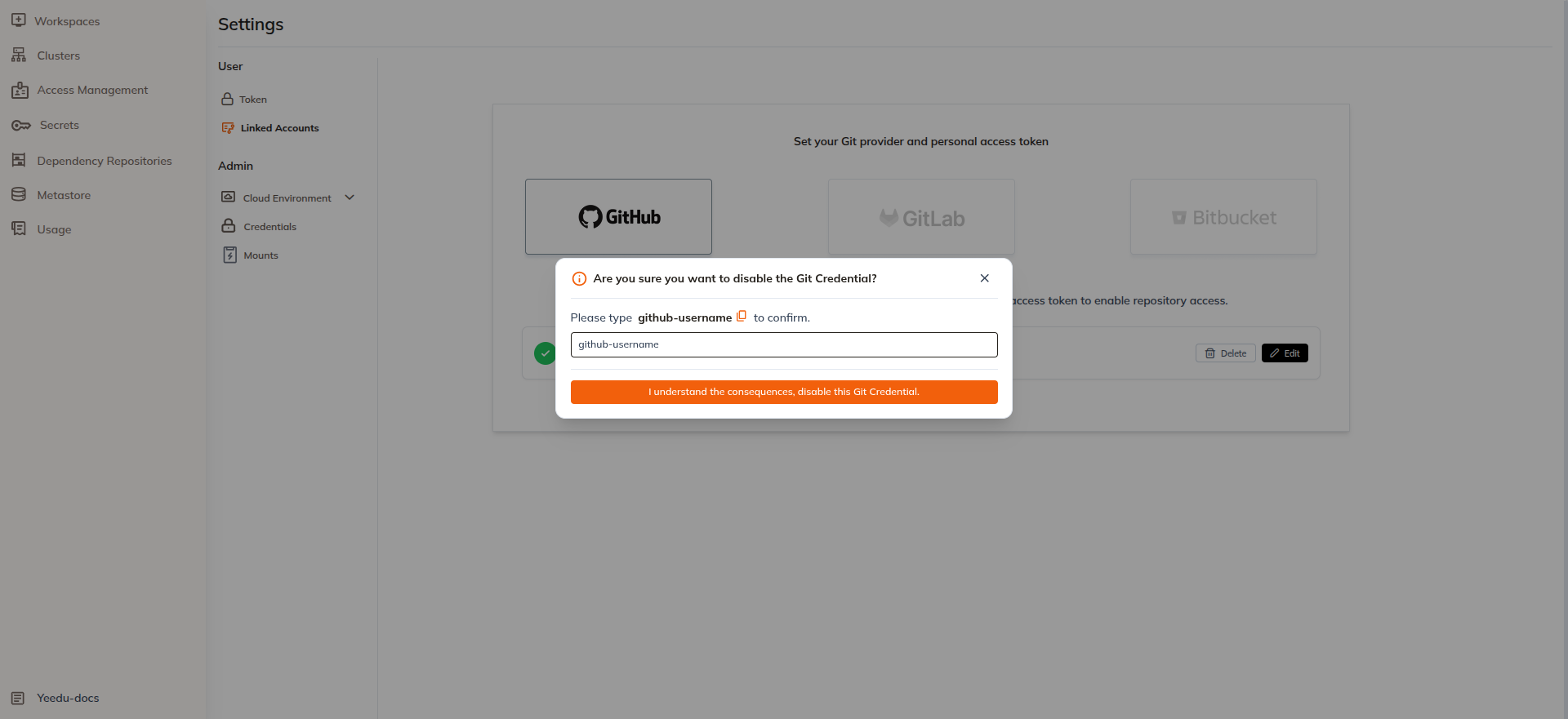
This step ensures that credentials are not accidentally removed.
Benefits of Git Credentials Integration
- Securely connect Git repositories to the platform.
- Simplify repository access for workspace files and Git folders.
- Enable seamless integration between Git workflows and data engineering pipelines.
- Manage credentials directly from the platform without external configuration.
Additional Git providers such as GitLab, Bitbucket, and Azure DevOps Services will be supported in future releases.