Git Clone (Git Folder)
Git integration in Yeedu allows users to clone repositories directly into their workspace. This enables users to work with version-controlled code, notebooks, and files without leaving the platform.
A repository can be cloned either with credentials (for private repositories) or without credentials (for public repositories).
Creating a Git Folder (Clone Repository)
To clone a Git repository into your workspace:
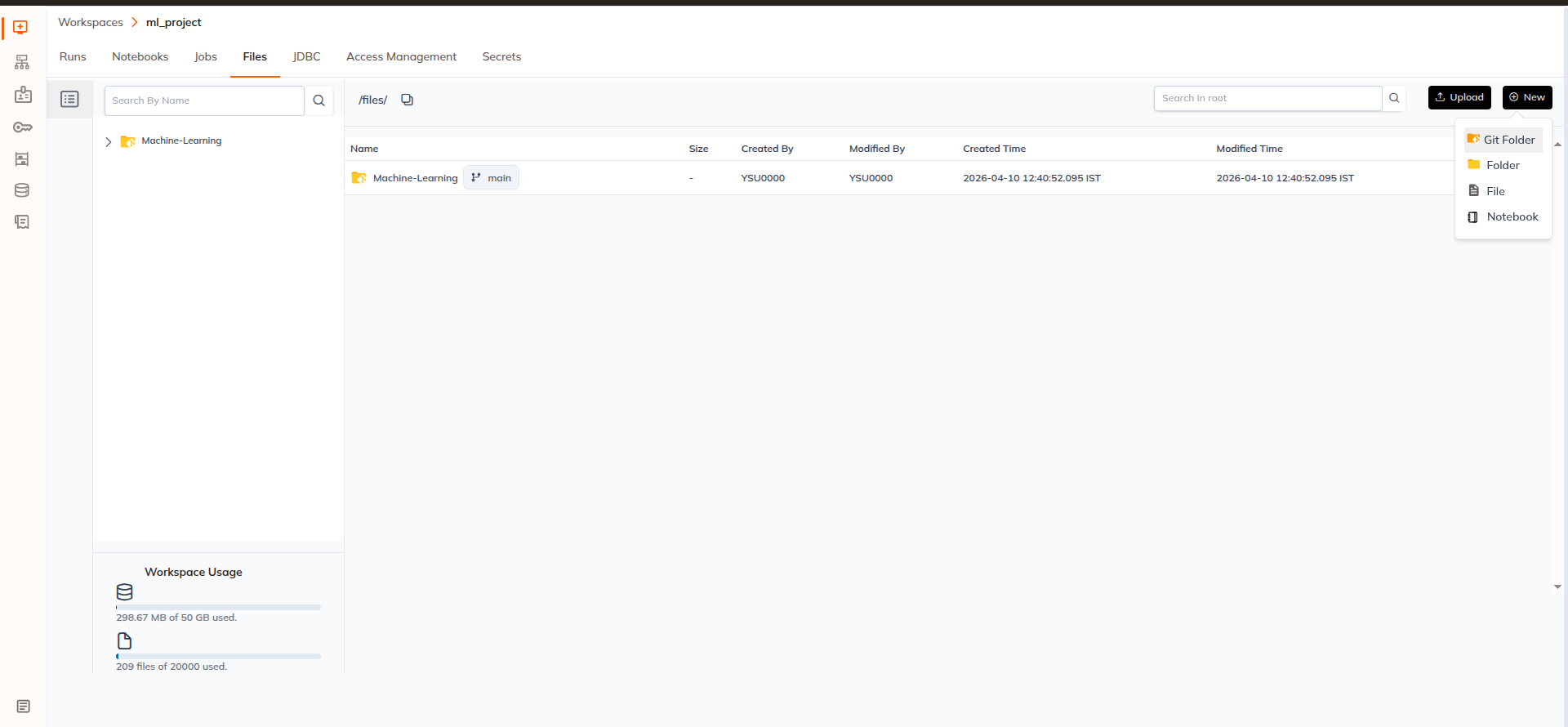
1. Navigate to Workspace Files
- Go to Workspace → Files
- Click the
+ Newbutton.
2. Select Git Folder
Choose Git Folder as the type.
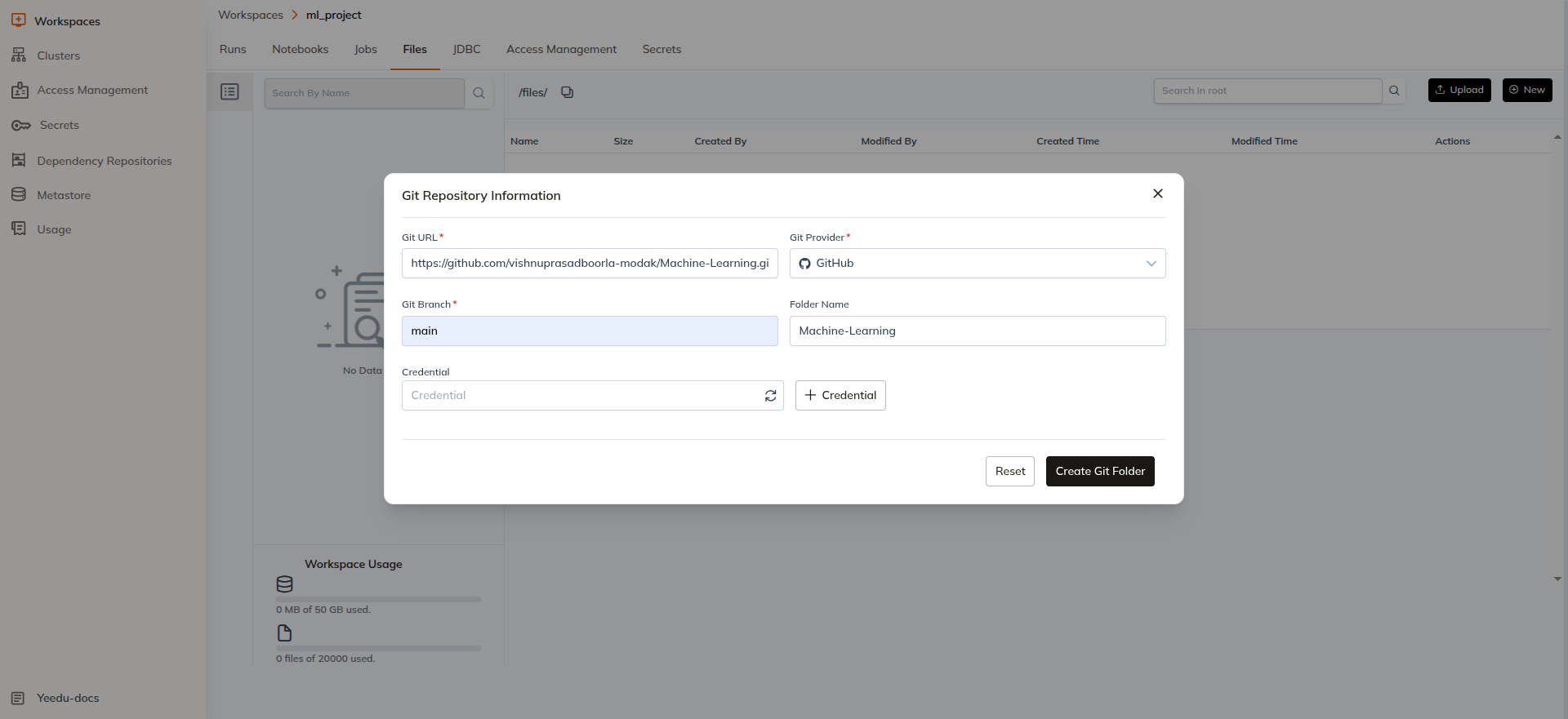
Provide the required Git details:
- Git URL
- Git Provider (currently supports GitHub only)
- Git Branch
- Folder Name (name you want to give the synced Git repository)
3. Select Credentials
- The Credential field will be automatically populated based on the Git URL details for the Git provider, or
- Click
+ Credentialto create a new one.
If the repository is public, credentials are not required and the repository can be cloned directly.
Once submitted, the system will begin cloning the repository.
Clone Progress Notification
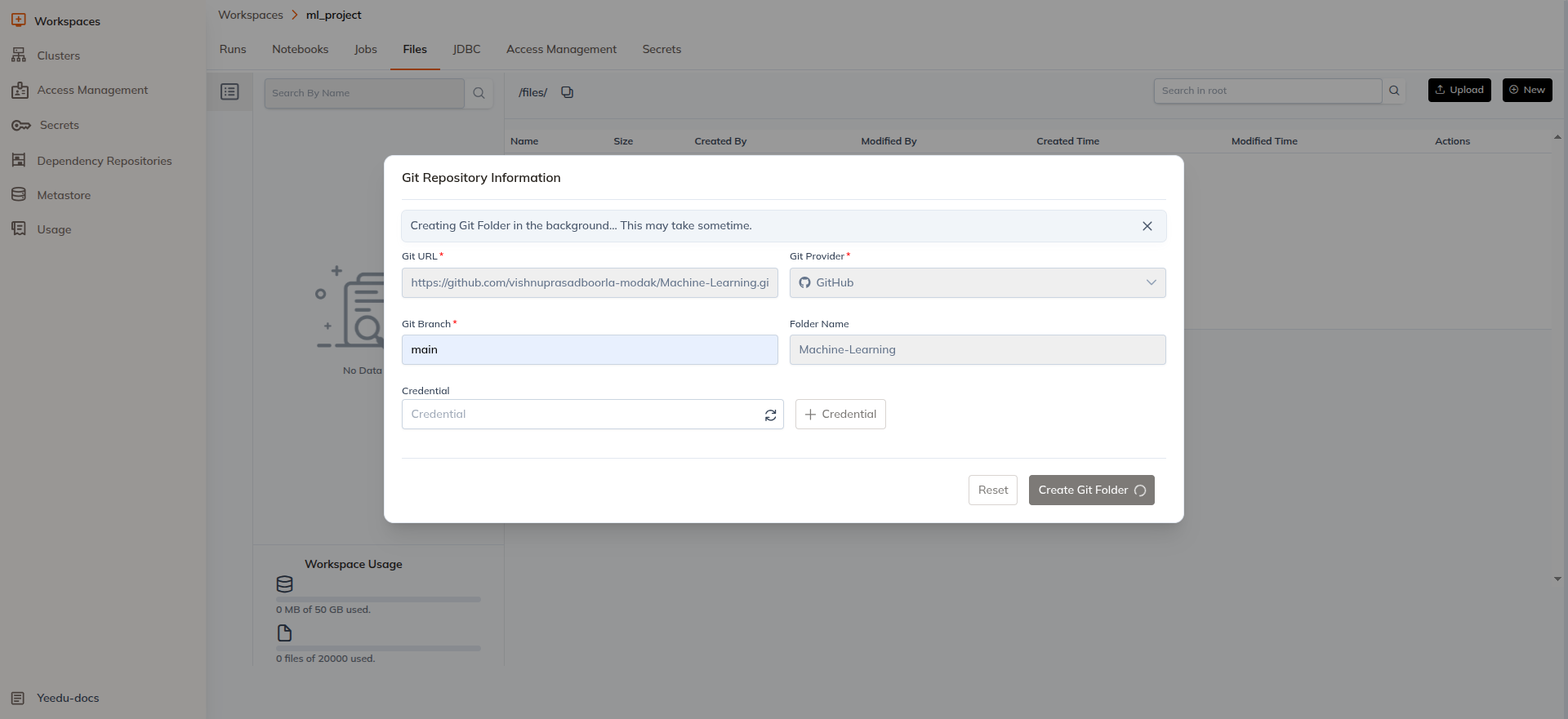
While the repository is being cloned, the UI displays a progress notification:
Creating Git Folder in the background... This may take sometime
Users can close this notification by clicking the X button located in the top-right corner of the popup. Closing the popup does not interrupt the cloning process.
Git Folder Representation in Workspace
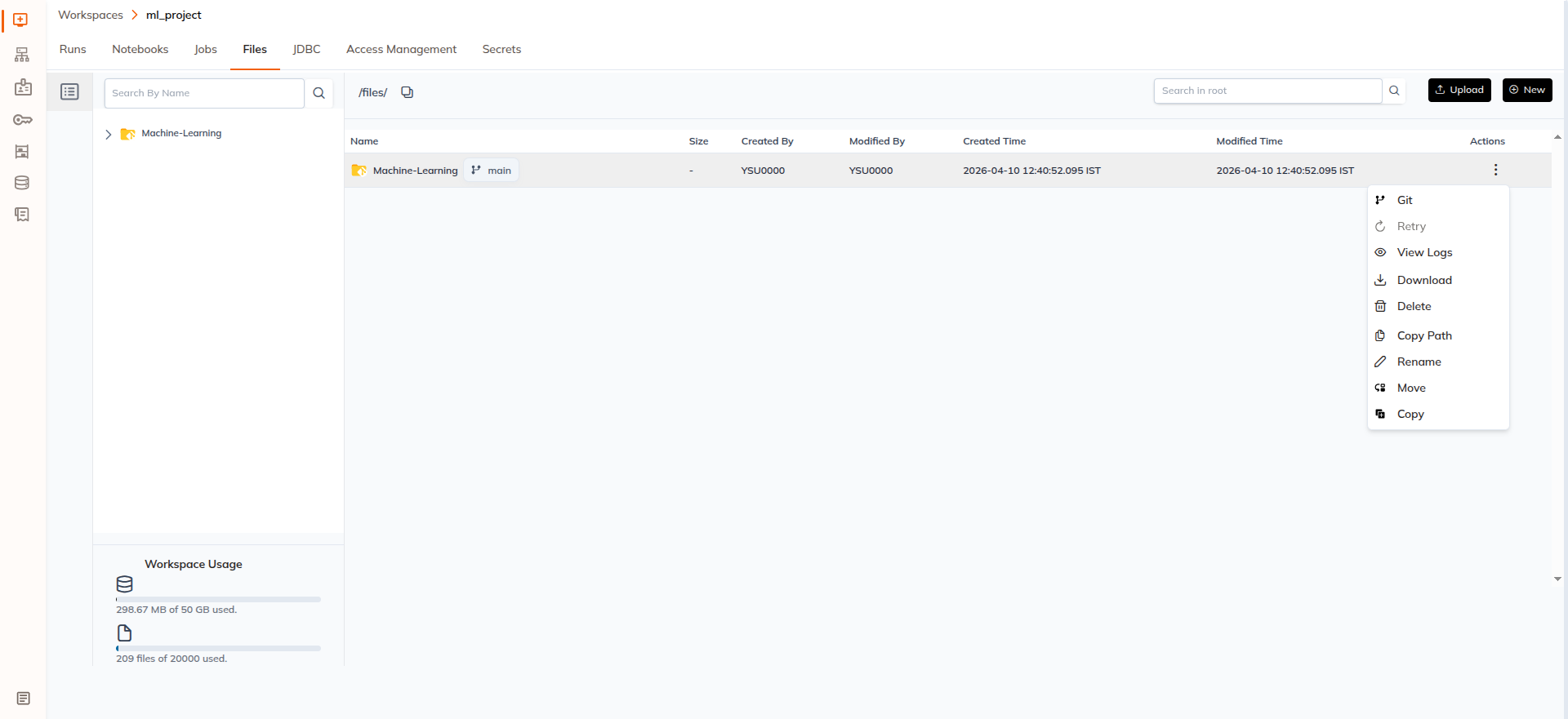
After the repository is successfully cloned, the Git folder will appear inside Workspace → Files.
Git folders are visually distinguishable from regular folders:
- A GitHub icon is displayed on the folder icon.
- The branch name appears next to the Git folder name.
Example:
my-repository (main)
Git Folder Actions
Git folders support additional Git-specific operations through the Action Menu (⋮).
Git
The Git option opens a popup that allows users to perform Git-related operations on the repository.
This popup provides access to various Git repository operations such as listing branches, switching branches, creating a new branch, viewing file diffs (similar to git diff), and identifying file changes including Added (A), Modified (M), Deleted (D), and Renamed (R). It also allows performing common Git actions such as Pull, Commit, and Push directly from the UI.
View Logs
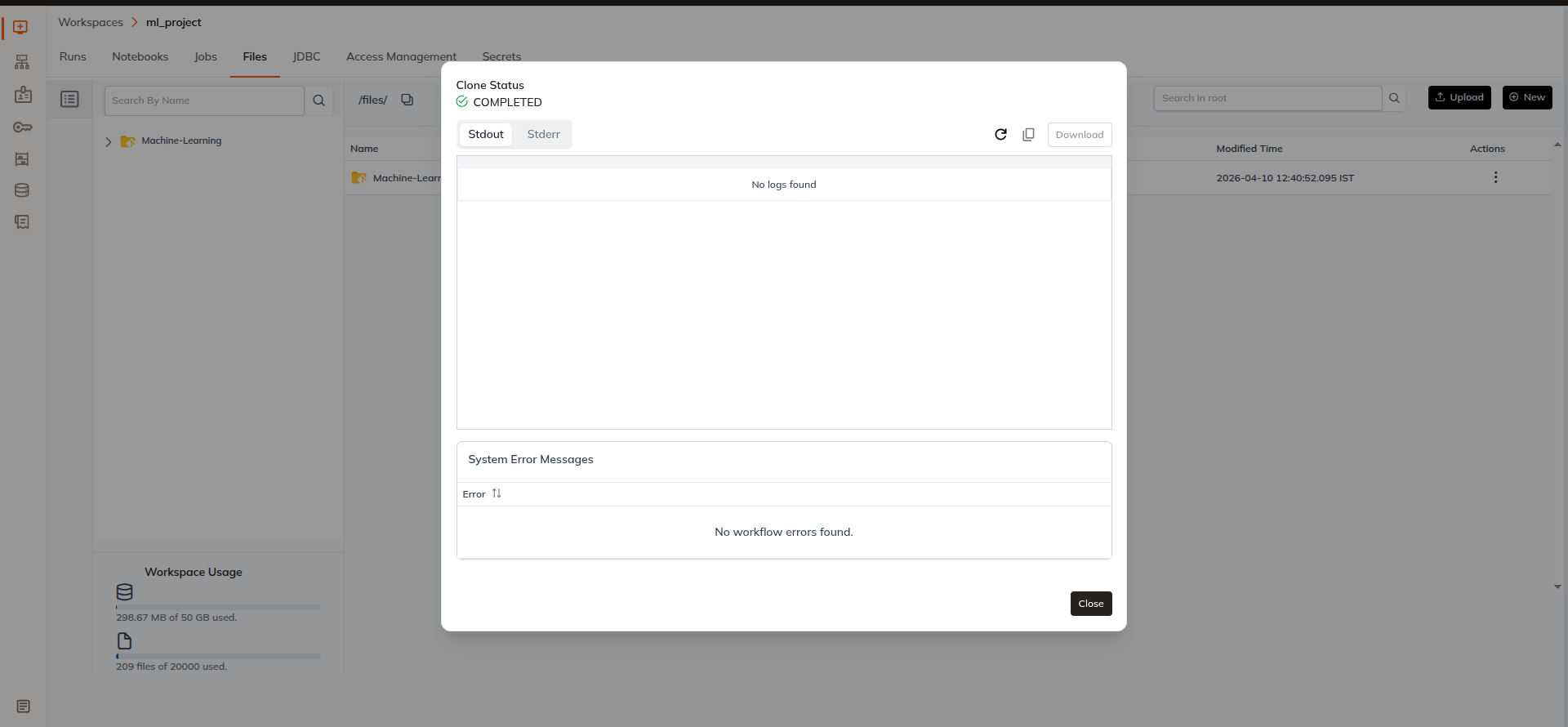
The View Logs option opens a popup that displays detailed information about the cloning process.
The popup includes the following sections:
| Section | Description |
|---|---|
| Clone Status | Displays the status of the repository clone operation |
| Stdout | Shows standard output logs generated during the clone process |
| Stderr | Displays error logs if any occurred during the process |
| System Error Messages | Displays workflow-level errors encountered during cloning |
If no system errors are present, the message "No workflow errors found" will be displayed.
The popup also includes the following actions:
- Refresh – Reloads the log output
- Copy Logs – Copies the log content to clipboard
- Download – Downloads the log file
- Close – Closes the popup window
Retry
The Retry option allows users to retry the clone operation if it fails.
Other Available Actions
In addition to Git-specific actions, Git folders also support the same file operations available in workspace files such as:
- Download
- Rename
- Move
- Copy
- Delete
For detailed information on these actions, refer to the Workspace Files documentation.
Summary
Git clone functionality enables users to bring repositories directly into the workspace environment. This allows seamless interaction with Git-managed projects while maintaining the same file management capabilities available within Yeedu.
Currently, GitHub is the only supported Git provider. Future versions will include support for GitLab, Bitbucket, Azure DevOps Services, and additional providers.