Mount-Cluster Mapping
Overview
Mounts can be attached to clusters and managed through the Cluster Configuration page. You can attach existing mounts, create new mounts, and manage them whether the cluster is active or in a destroyed state.
Accessing Mounts in Cluster Configuration
The Mounts option is available in the cluster configuration page:
- Go to Clusters
- Click on a cluster (existing or select when creating a cluster)
- In the cluster configuration, navigate to the Mounts section
- You will see options to:
- Attach existing mounts
- New - create a new mount directly from here

Creating Mounts During Cluster Creation
When creating a new cluster:
- Fill in basic cluster details (name, size, etc.)
- Navigate to the Mounts section in cluster configuration
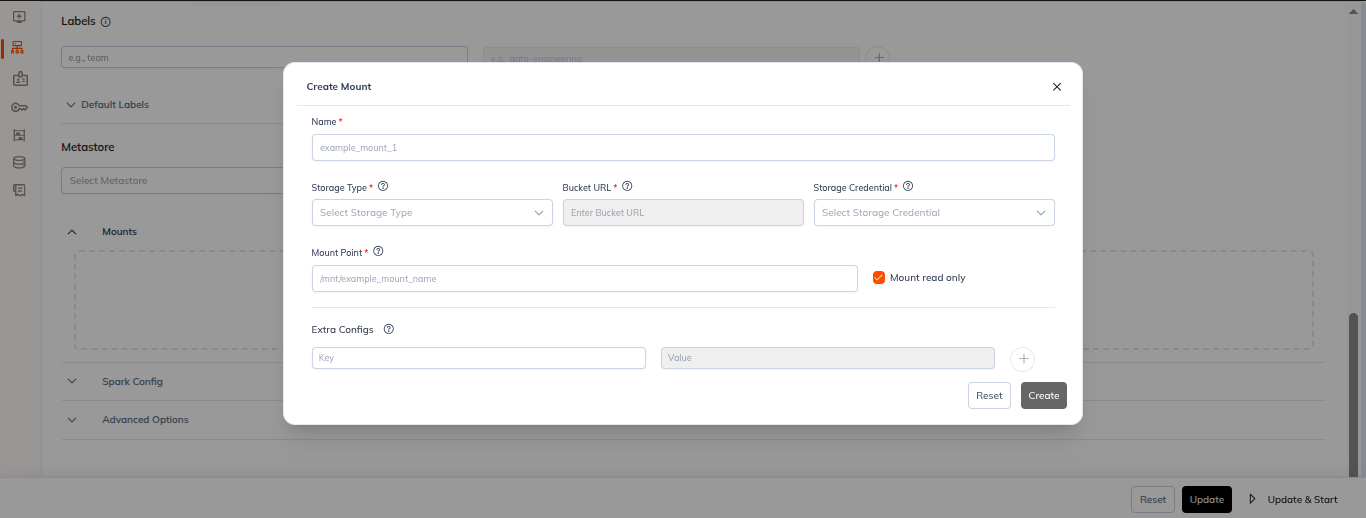
- Click New to create a new mount directly
- Fill in mount fields:
- Name: Unique mount name
- Storage Type: Amazon S3, ADLS Gen2, GCS, HDFS, NFS
- Storage Credential: Select or create credentials
- Mount Point: Cluster path (e.g.,
/mnt/example_mount_name) - Bucket URL: Source storage location (e.g.,
s3://bucket/prefix) - Extra Configs: Optional provider-specific settings
- Mount Read Only: Toggle for read-only access
- Click Attach to add the mount to the cluster
- Complete cluster creation
Attaching Existing Mounts During Cluster Creation
When creating a cluster:
- Navigate to the Mounts section in cluster configuration
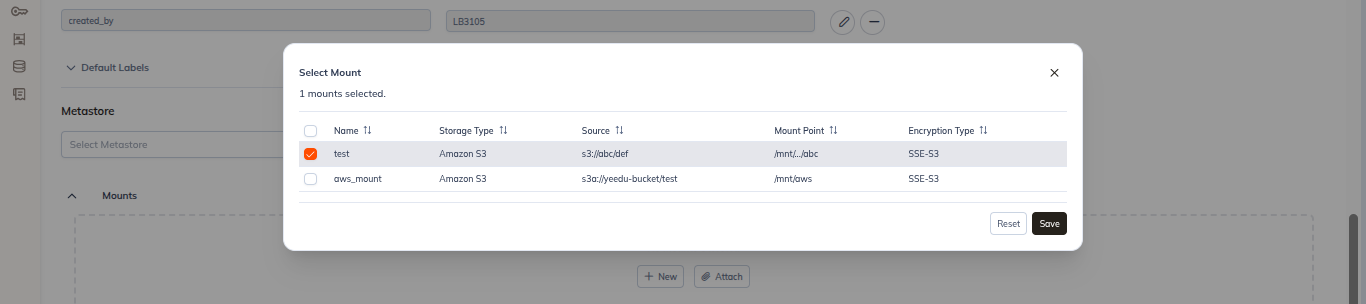
- Click Attach
- Select one or more existing mounts from the list
- Click Save or Apply
- Complete cluster creation with selected mounts
Managing Mounts on Destroyed Clusters
Even when a cluster is in Destroyed state, you can:
- Go to Clusters
- Click on the destroyed cluster
- Open the Mounts section in cluster configuration
- Create new mounts directly from this page
- Attach/detach existing mounts
- Changes are saved and will be applied when cluster is recreated or resumed
- Once mounts are attached to a cluster, they are available for use in notebooks and jobs running on that cluster.
