Yeedu Assistant
Overview
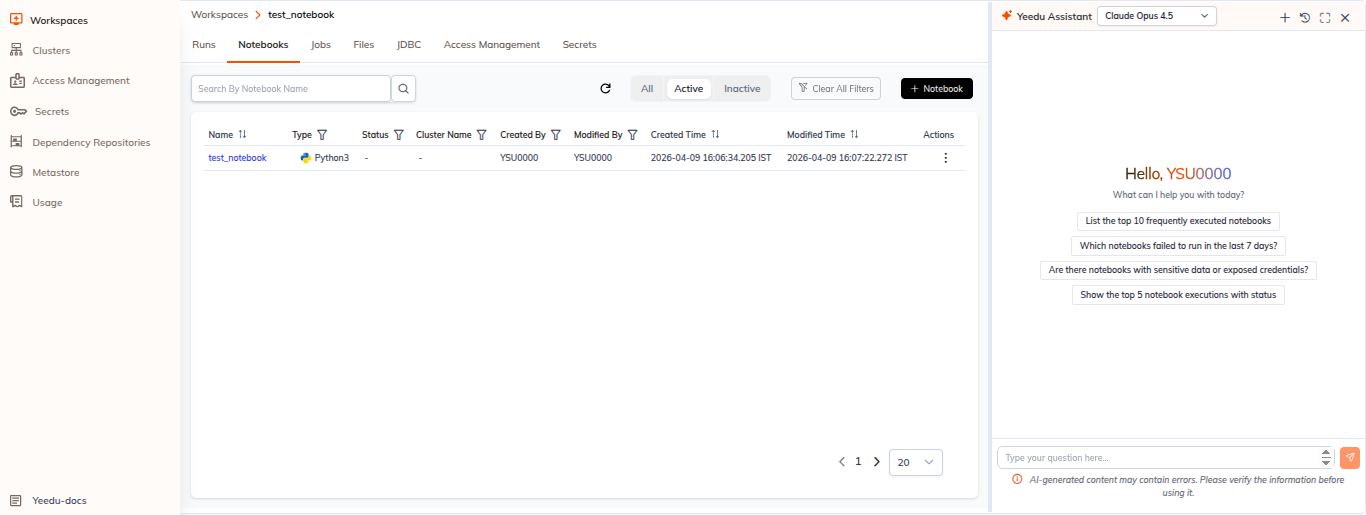
Yeedu Assistant is the platform-wide AI assistant available across the entire Yeedu UI. It is used to diagnose cluster and job errors, answer questions about Yeedu features, and provide general product guidance.
In notebook cells, the AI Assistant is a separate, cell-level assistant that helps you ask questions specific to the current cell, generate code, and optimize notebook queries.
Note: Yeedu Assistant is available on every page of the Yeedu UI. The AI Assistant is available inside notebook cells for more targeted per-cell assistance and model selection.
Key Features
The notebook AI Assistant helps you build and improve code with a single cell-level workflow:
- Generate Spark SQL, Python/PySpark, Scala, and notebook query code from natural language.
- Get inline code assistance with autocomplete, snippets, bug detection, and performance recommendations.
- Diagnose notebook cell errors with automatic root-cause analysis and suggested fixes.
- Optimize SQL and data queries with execution, rewrite, indexing, and performance insights.
Accessing Yeedu Assistant
Yeedu Assistant is available across the Yeedu UI. Use the assistant panel or icon from any page to diagnose cluster errors, job failures, and ask questions about Yeedu.
In the Yeedu UI
- Open any page in Yeedu
- Click the Yeedu Assistant panel or icon
- Enter your question/request
Using AI Assistant in Notebooks
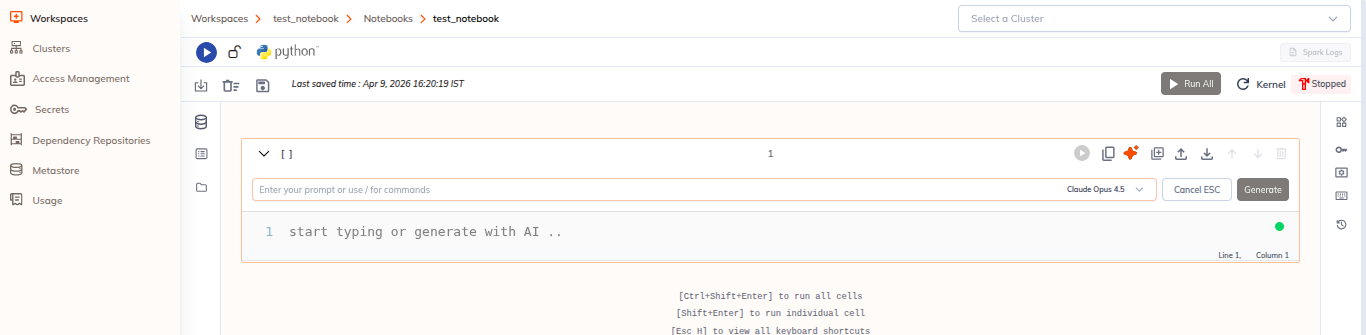
In notebook cells, the AI Assistant offers a cell-level experience for asking prompts specific to that cell.
In Notebook Cells
- Open a notebook cell
- Click the AI Assistant button
- Select a model for this cell
- Enter your prompt or code context
- Click Generate or press Enter
- Review the response and click Accept or Reject
Using AI Assistant for Code Generation
Generate Query
- Click Generate Code
- Describe what you want:
- "Get total sales by region"
- "Count unique customers per month"
- "Join customers with orders"
- Select query type:
- SQL
- Python/PySpark
- Scala
- AI Assistant generates code
- Review and adjust as needed
- Execute in notebook
Error Diagnosis with AI Assistant
Automatic Error Analysis
When a cell fails:
- Error message displayed in output
- Diagnose button appears
- Click the button to see issue
- Yeedu Assistant shows:
- Root cause
- Why it occurred
- Suggested fixes
- Related documentation
Manual Error Diagnosis
- Select the error message
- Right-click → Ask AI Assistant
- Describe your issue
- Get targeted suggestions
Debugging Workflow
- Run cell with error
- Click Diagnose
- Review diagnosis
- Apply suggested fix
- Re-run cell
- Verify results
Model Selection Per Cell
LLM model selection is configured per notebook cell. Choose the best model for each cell's task to optimize performance and cost.
Change Cell Model
- Focus the notebook cell
- Click the AI Assistant button in the cell toolbar
- Open the model dropdown
- Choose the model for the current cell
- Enter your prompt in the assistant input box
- Click Generate or press Enter
- Review the response and click Accept to keep it or Reject / press ESC to dismiss it
Model Options
| Model | Best For | Speed | Cost | Context |
|---|---|---|---|---|
| GPT-5.2 | Highest-capability code reasoning | Medium | High | Large |
| GPT-5.1 | Advanced generation and analysis | Medium | High | Large |
| GPT-5 | General-purpose coding and reasoning | Medium | High | Large |
| GPT-5 Mini | Fast, lightweight responses | Fast | Medium | Small |
| GPT-4o | Strong reasoning and efficiency | Medium | Medium | Large |
| GPT-4o Turbo | Faster GPT-4o variant | Fast | Medium | Large |
| GPT-3.5 Turbo | Quick suggestions, simple tasks | Fast | Low | 16K tokens |
| Claude Opus 4.6 | Long-context code analysis | Medium | Medium | 100K tokens |
| Claude Sonnet 4.6 | Structured reasoning and code review | Medium | Medium | 100K tokens |
| Claude Opus 4.5 | Code understanding with long context | Medium | Medium | 100K tokens |
| Claude Sonnet 4.5 | Code review and refactoring | Medium | Medium | 100K tokens |
| Claude Sonnet 4 | Natural language and code insights | Medium | Medium | 100K tokens |
| Claude Haiku 4.5 | Lightweight code help | Fast | Medium | 100K tokens |
Model Selection and Usage
AI Assistant provides a choice of notebook-level models so you can match the task to the right capability and cost.
- Set a default model in Settings and override per cell as needed.
- The selected model applies only to the active cell.
- After entering a prompt, click Generate or press Enter.
- Review the response and click Accept to keep it or Reject / press ESC to dismiss it.
How to Choose
- GPT-5: use for complex code generation, detailed debugging, and large-context reasoning.
- GPT-4o: use for fast, interactive notebook tasks with strong reasoning.
- GPT-3.5 Turbo: use for quick suggestions, simple completions, and routine edits.
- Claude: use for long-context code analysis, review, and technical explanations.
Cost and Optimization
- Higher-capability models typically cost more.
- Use lower-cost options for simple or repetitive tasks.
- Use stronger models when the task requires deeper reasoning or larger context.
- Monitor token usage and choose the model that balances speed, cost, and accuracy.
Query Optimization and Context
The AI Assistant can help optimize notebook queries and understands notebook context to give better recommendations.
Query Optimization
- Write the SQL query in the notebook cell.
- Select query text.
- Click Optimize Query.
- The AI Assistant reviews the query and suggests:
- execution improvements
- join optimization
- indexing and partition recommendations
- caching strategies
Context and Privacy
The AI Assistant uses notebook context such as:
- current active notebook and cell content
- selected code or text
- imported libraries
Data handling and privacy principles:
- Code is processed securely.
- No data is stored permanently by default.
- Enterprise-grade encryption protects requests.
- Compliance with privacy and security policies is maintained.
Best Practices and Troubleshooting
Best Practices
- Be specific and provide context in prompts.
- Verify generated code before using it.
- Test outputs with sample data and edge cases.
- Use follow-up prompts to refine results.
Troubleshooting
- If the assistant does not respond, check connectivity and model selection.
- If output quality is poor, provide more context, simplify the request, or try a different model.
- If model selection issues occur, confirm the model is available and check permissions.
- Contact support if access or subscription problems persist.