Import / Export Workspace
Workspaces support seamless import and export capabilities to enable migration, backup, and replication of jobs and notebooks across environments. These actions can be accessed directly from the Actions menu of each workspace.
Export Workspace
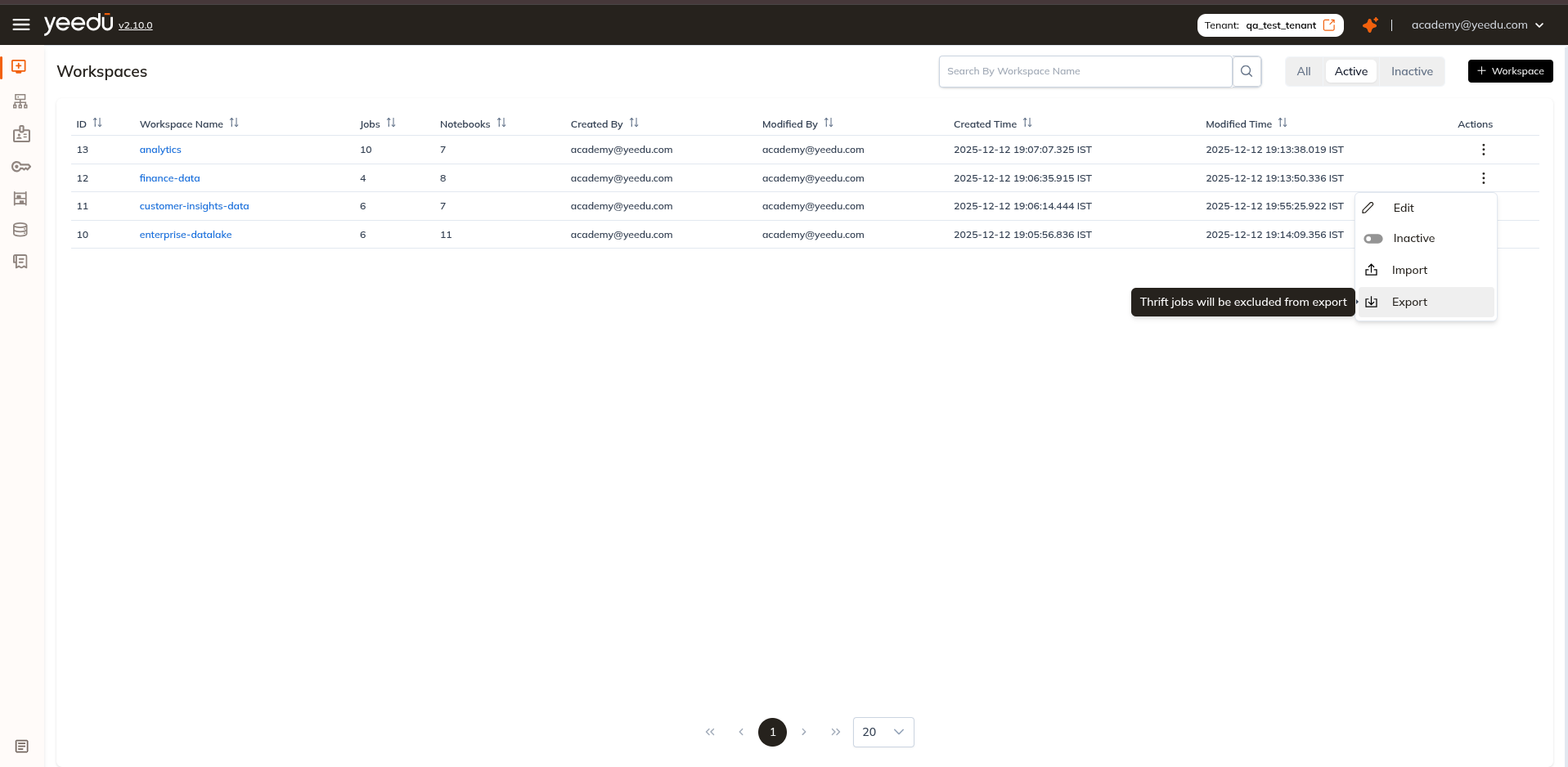
Exporting a Workspace packages all its Job and Notebook configurations into a downloadable .zip file. You can use this to back up content, migrate work to a different environment, or share configurations across teams.
To export a Workspace:
- Open the Actions menu of the desired Workspace.
- Click Export.
- A
.zipfile downloads to your local machine.
Note: Thrift Jobs are excluded from the export.
Import Workspace
You can import a previously exported .zip package into any active Workspace to restore or replicate its Jobs and Notebooks — for example, when setting up a new environment, mirroring production in staging, or recovering from a backup.
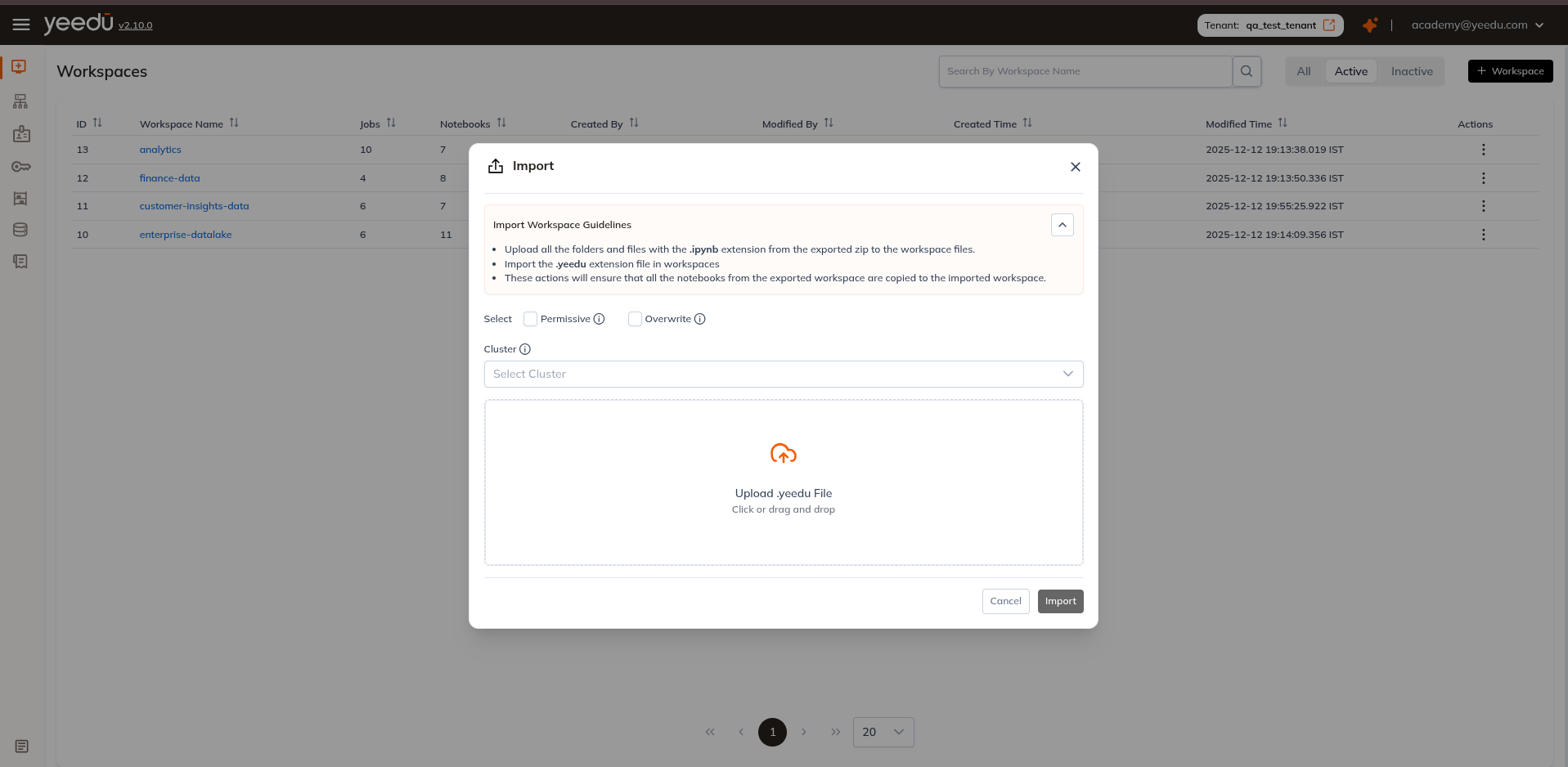
Import Guidelines
Before initiating the import:
- Upload all folders and
.ipynbfiles from the exported ZIP into the Workspace Files section. - Upload the
.yeedufile through the Workspace Import pop-up.
These steps ensure that all notebooks and relevant metadata are successfully copied into the target workspace.
Import a Workspace
To import jobs and notebooks into a workspace:
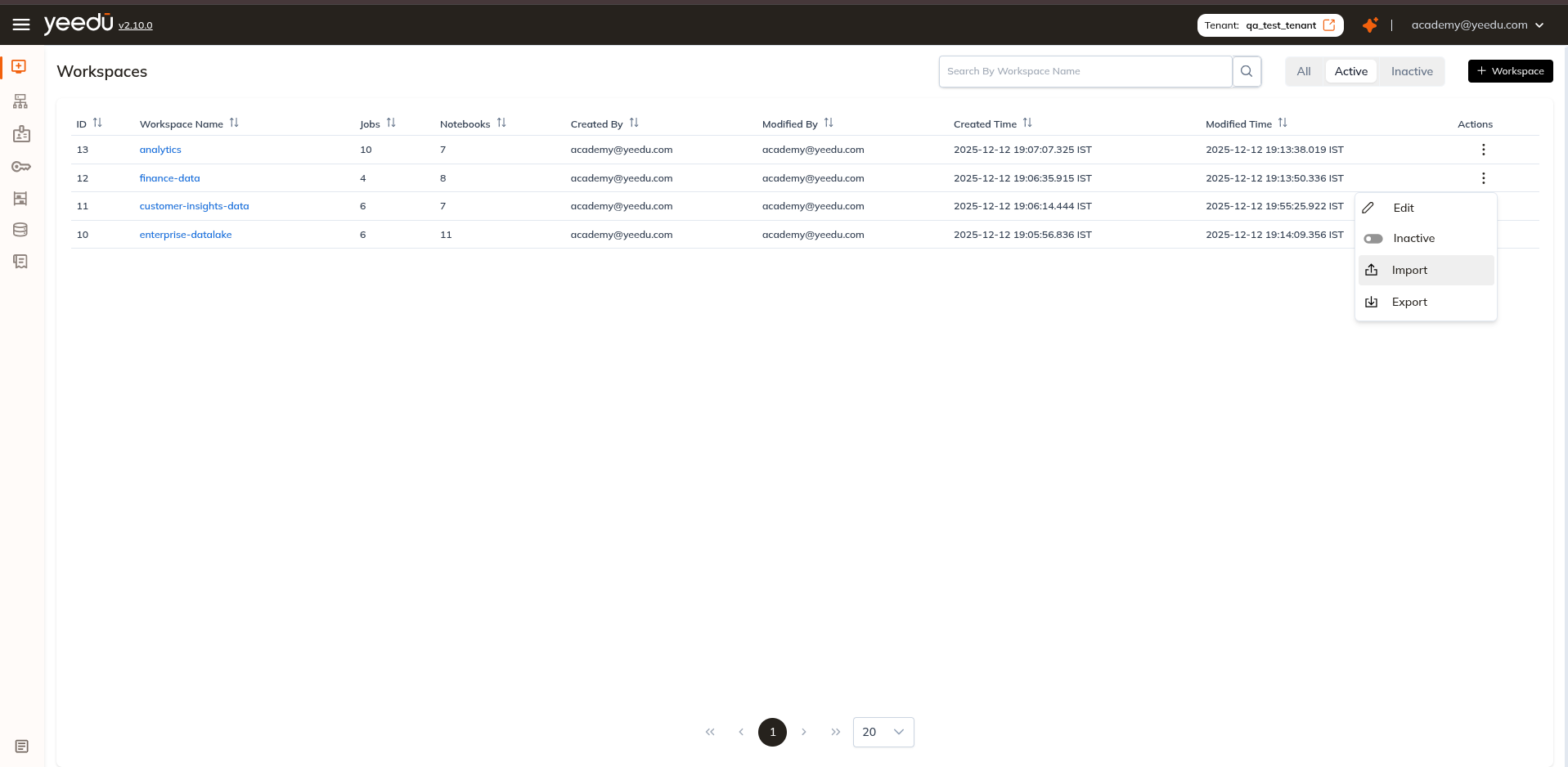
- Open the Actions menu of a specific workspace.
- Click Import to open the import pop-up.
- Configure the following options:
1. Select Permissive, Overwrite (optional)
- Permissive: Allows partial import — valid items are created even if others in the batch fail.
- Overwrite: Replaces existing Jobs or Notebooks that share the same name as an imported item.
2. Select Cluster (optional)
Choose a Cluster to assign to all imported Notebooks, replacing the original Cluster reference from the export.
3. Upload a .yeedu File
Upload the exported .yeedu file and click Import to start the process.
What happens after import
- Jobs and Notebooks from the exported package are created in the target Workspace.
- If Overwrite is enabled, existing Jobs or Notebooks with matching names are replaced with the imported versions.
- If Permissive is enabled, the import continues even if individual items encounter errors (for example, a missing cluster reference). Items that fail are skipped, and the rest are imported successfully.
- If a Cluster is selected, all Notebook configurations in the imported package are updated to reference the chosen Cluster instead of the original one.
- Imported content is immediately available for editing and execution in the target Workspace.
Workspace Permission Matrix
| Ability | Can Manage | Can Edit | Can Run | Can View |
|---|---|---|---|---|
| Workspace Access Management | ✔ | ✖ | ✖ | ✖ |
| Activate or Inactivate the Job, Notebook, Workspace | ✔ | ✔ | ✖ | ✖ |
| Create or Update Job or Notebook Configurations | ✔ | ✔ | ✖ | ✖ |
| Run or Stop the Job or Notebook | ✔ | ✔ | ✔ | ✖ |
| Read All Job or Notebook Configurations and Runs | ✔ | ✔ | ✔ | ✔ |