Notebook Enhancements
Auto-Save
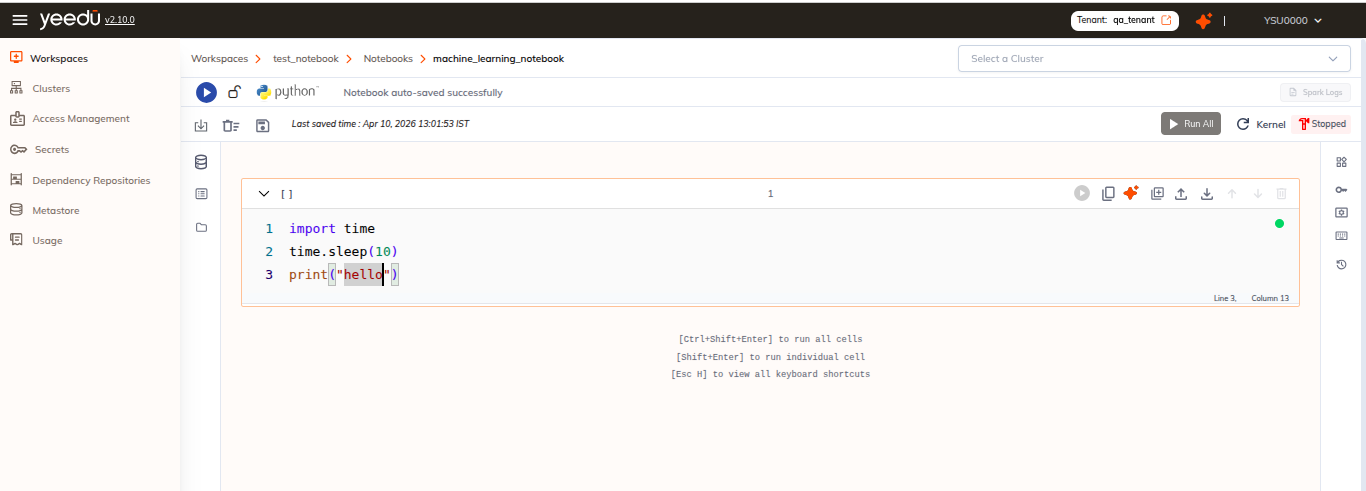
Auto-Save Functionality
- Detects when the user starts or stops typing in code cells.
- Automatically saves the notebook 10 seconds after typing stops.
- Shows visual indicators for unsaved changes (orange dot).
- Supports manual save override with Ctrl+S.
- Displays success notification for save operations.
Save Shortcuts
- Click the Save button (if visible).
- Or use keyboard shortcut: Ctrl+S
- The notebook saves immediately
Markdown Cell Support
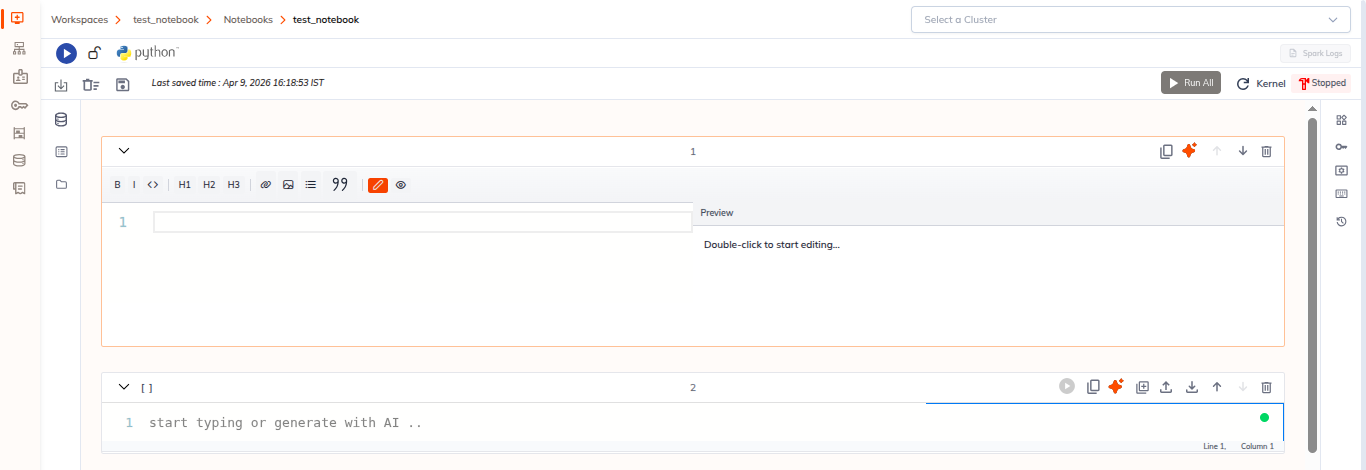
In Yeedu notebooks, click +text to add a Markdown cell. Double-click the new cell to edit its content.
Creating Markdown Cells
- Open a notebook.
- Click +text to add a new Markdown cell.
- Double-click the cell body to enter edit mode.
- Type your content and click outside the cell to render it.
Editing Markdown Cells
- Double-click any Markdown cell to edit the rendered content.
- After editing, click outside the cell or use the toolbar to save and render.
Spark Logs
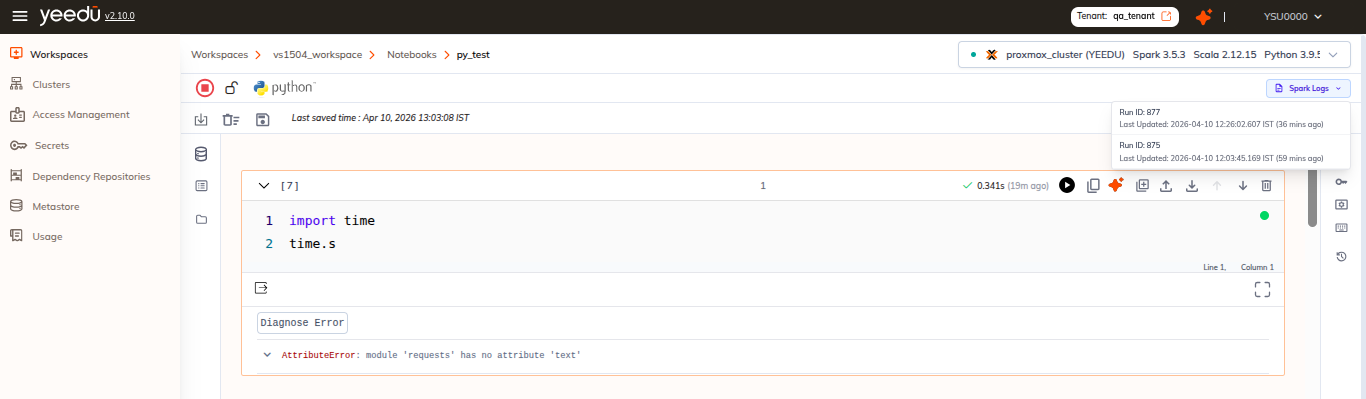
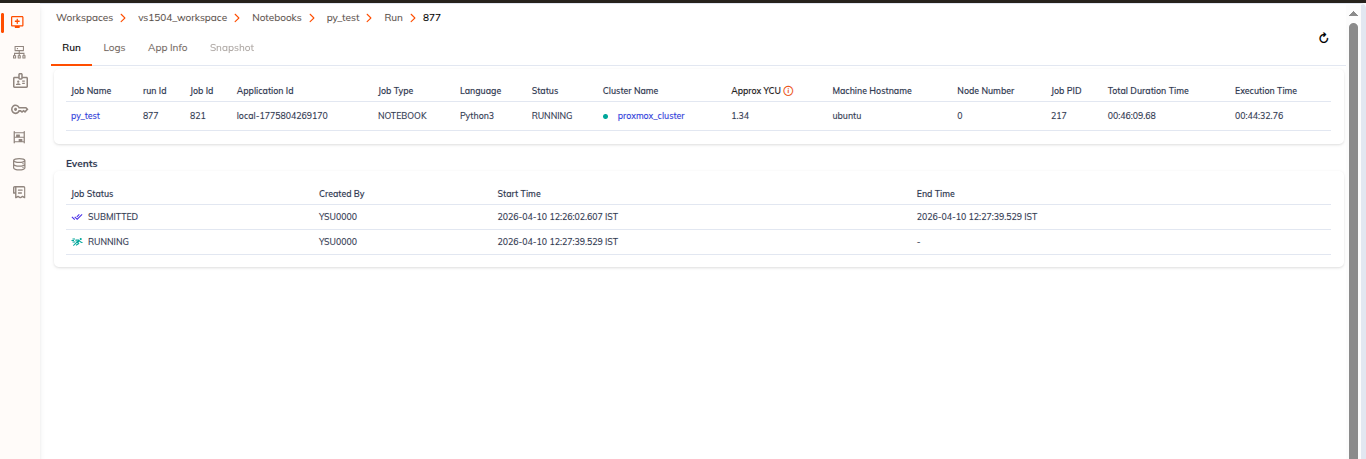
In the notebook editor, click Spark Logs to view Spark run information for the current notebook.
Viewing Run IDs
- Click Spark Logs in the notebook toolbar or sidebar.
- The panel displays a list of Run IDs for Spark jobs related to the notebook.
- Click a Run ID to open the app info page for that job.
- The app info page shows detailed jobs, stages, and execution logs.
Navigation
- Open a notebook in the editor.
- Click Spark Logs.
- Find the desired Run ID.
- Click the Run ID to go to the job's runs page.
Benefits
- Quickly jump from notebook context to Spark job details.
- Inspect Spark execution history for debugging and performance analysis.
- Access job logs and stage information from the notebook UI.
General Enhancements
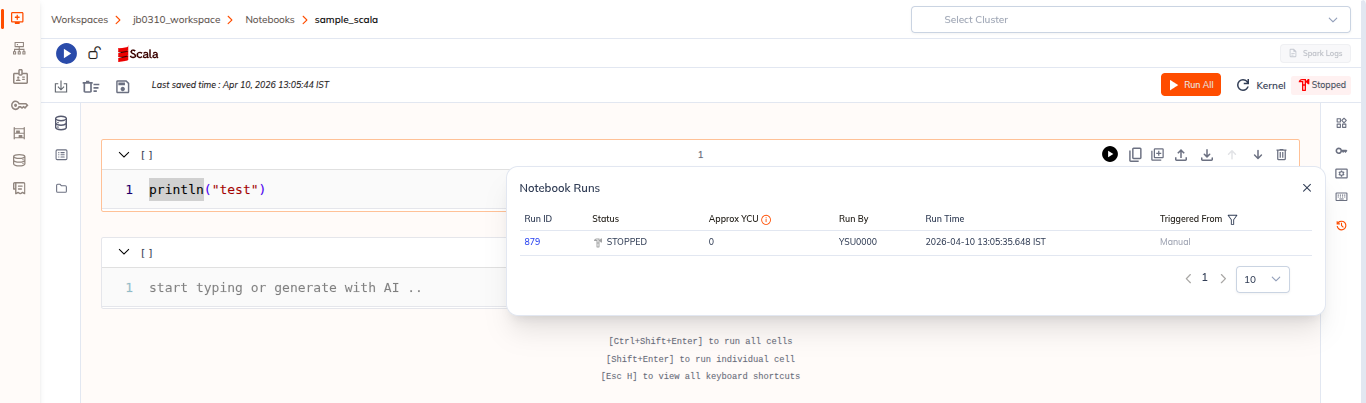
- Display multiple notebook instances in the UI.
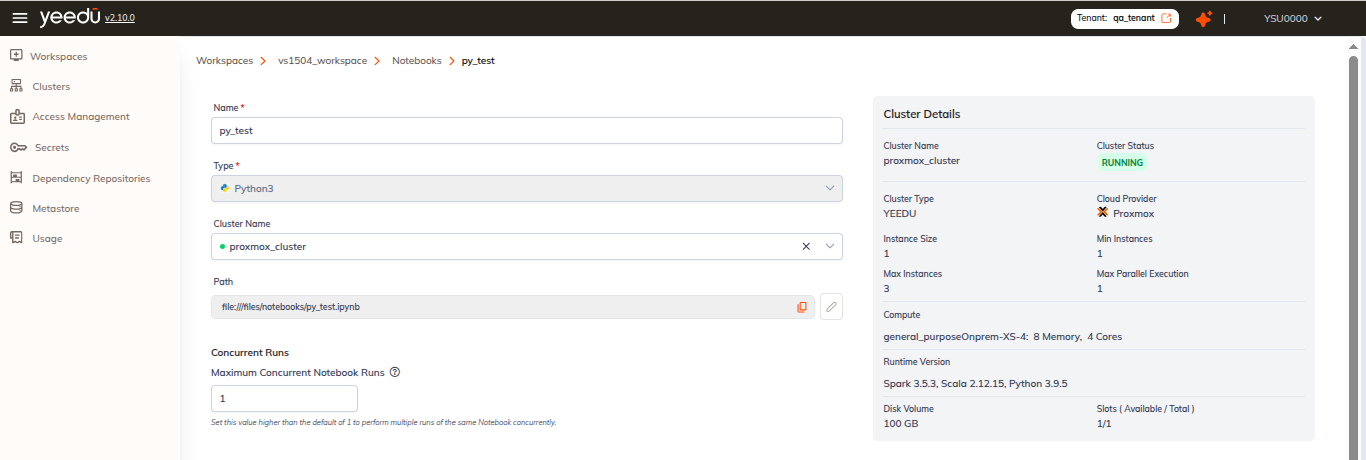
- Added
max_concurrencywhen creating or editing notebooks.
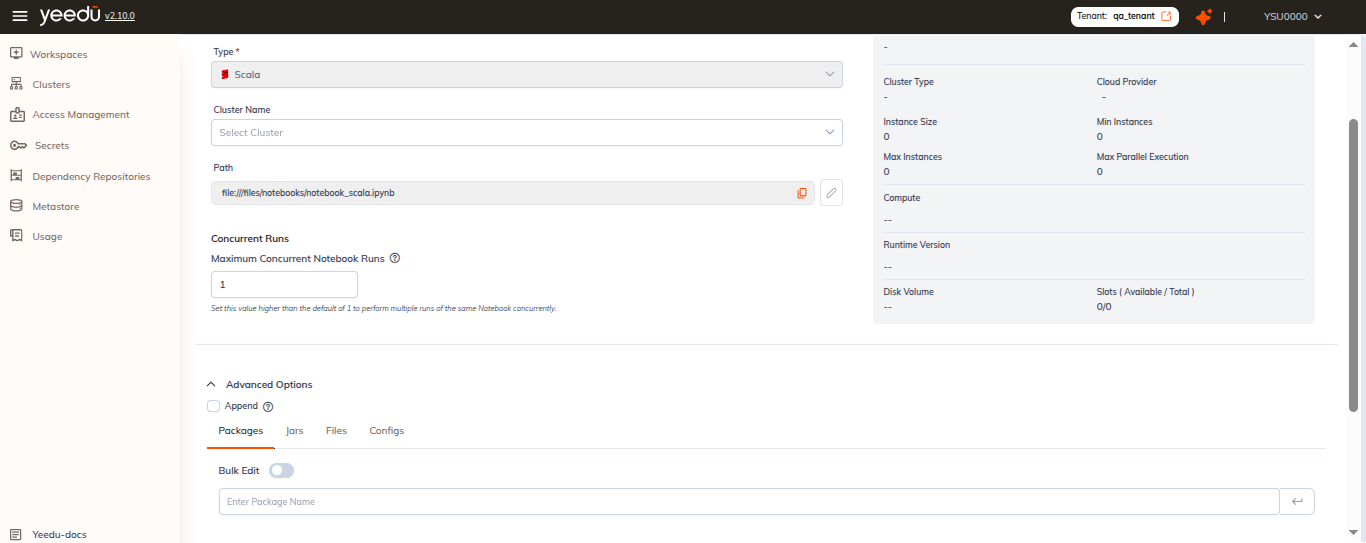
- Enabled advanced options for Scala and SQL notebooks.
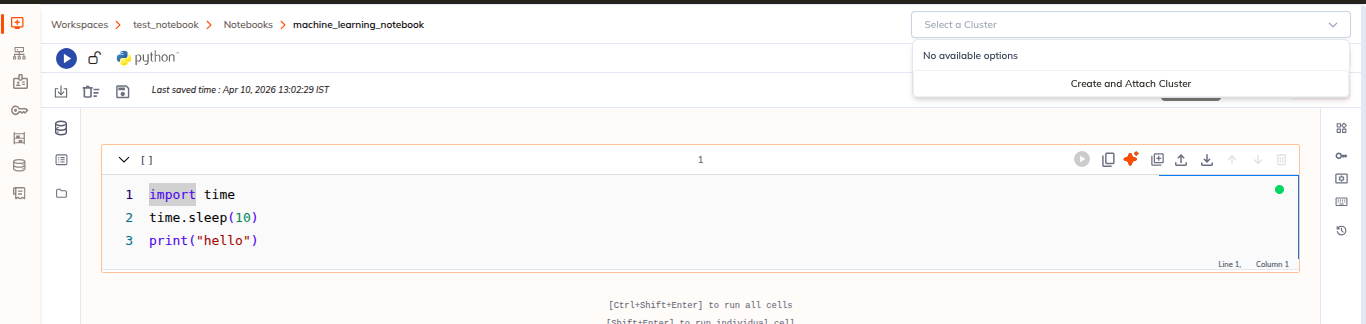
- Added cluster creation directly from the notebook editor.
- Automatically stop notebook sessions when the cluster enters an error state.
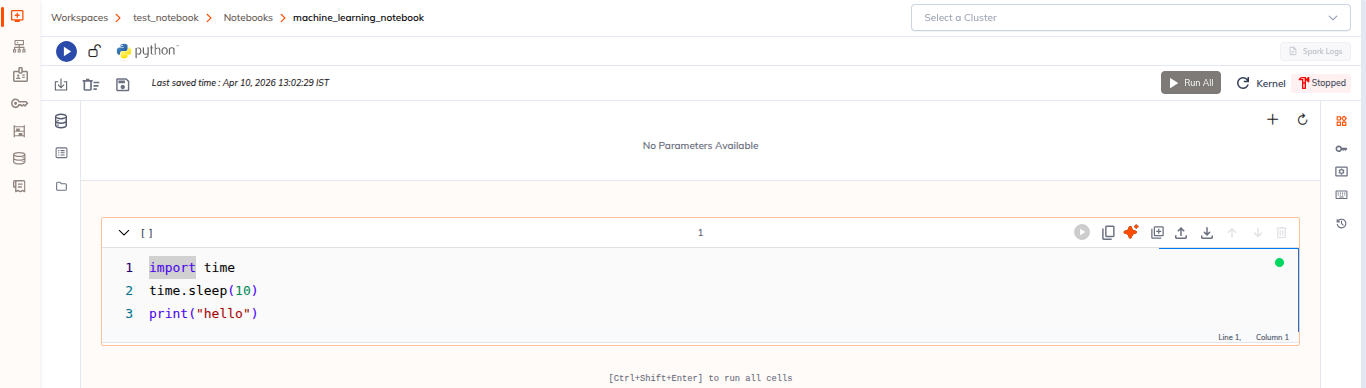
- Added dbutils.widgets rendering support in the Widgets Panel after execution.
- Added a Turbo toggle from the cluster dropdown in notebooks.
- Improved notebook tooltips and permission-aware action states.
- Added notebook run snapshot downloads for better debugging and analysis.
- Included
application_idin notebook run tracking.
- Added filtering for background notebook runs.