Create Cluster
Accessing Cluster Creation
- Navigate to Clusters in the Yeedu navigation panel.
- Click the + Cluster button (top-right above Action tab).
- A pop-up window appears to configure the new cluster.
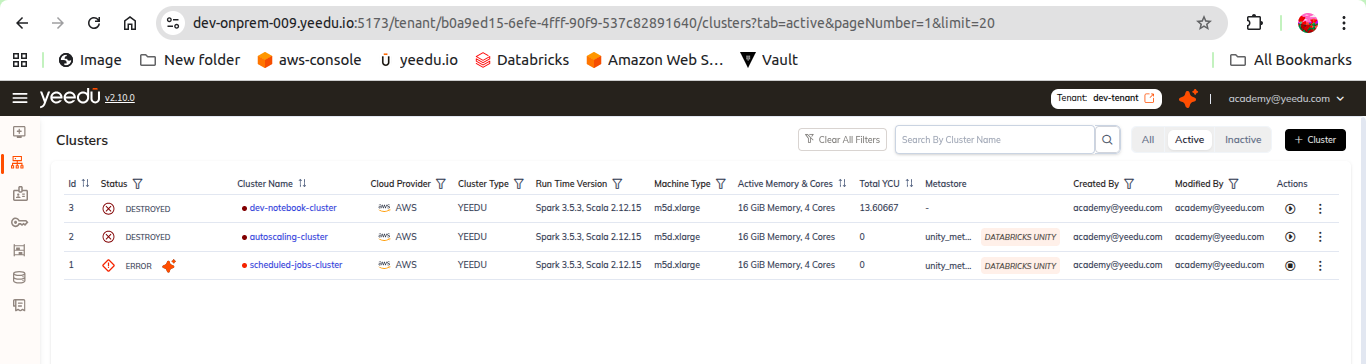
Required Fields
Cluster Name
- Max length: 64 characters
- Allowed: lowercase letters,
-,_,@,. - User-provided description is allowed.
Cloud Environment
Supported providers:
- AWS
- Azure
- GCP
Runtime Version
- Select Spark + Scala runtime.
Cluster Type
Options:
- Yeedu Mode
- Standalone Mode
- Cluster Mode
Note: Cluster type cannot be modified after creation.
Yeedu Mode Configuration
- Fully managed Spark environment.
- Optimized for CPU performance.
- Runs Spark in local mode.
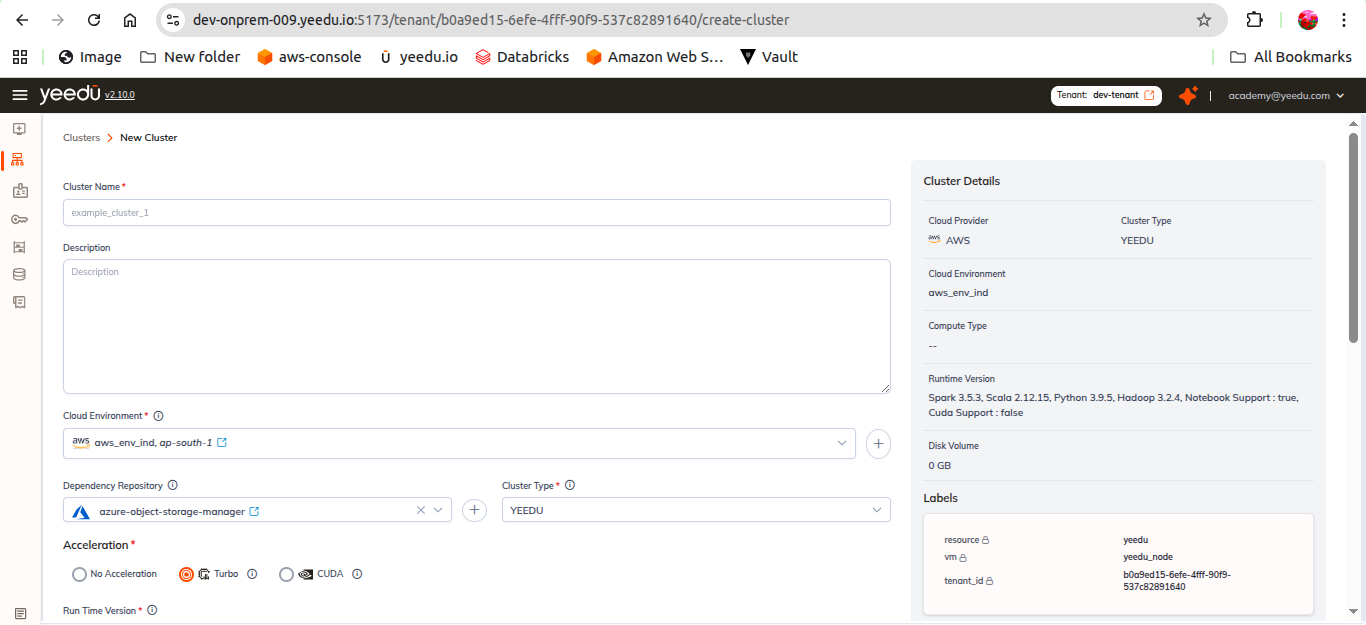
Instance Settings
- Min Instances: default
1 - Max Instances: up to
30 - Workers per Node
- Parallel Execution Count
- Compute Type (machine type selection)
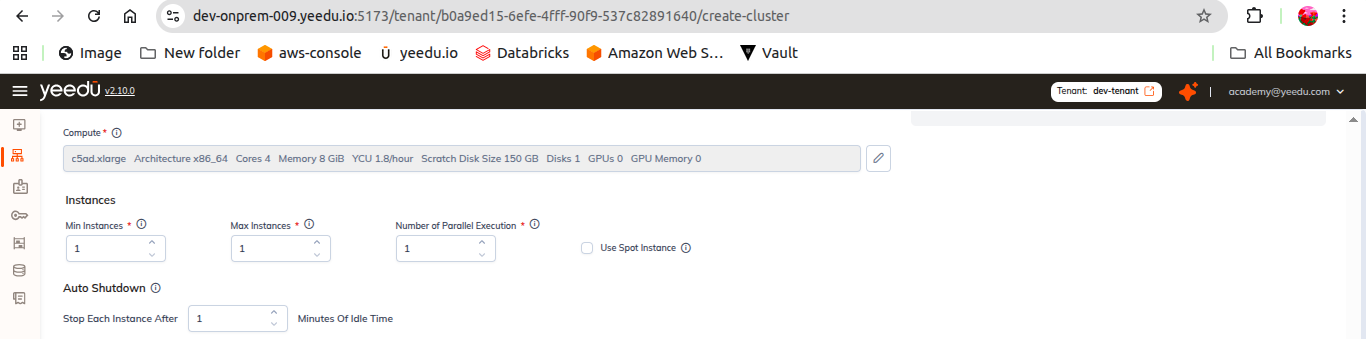
Spot Instances (Experimental)
- Uses discounted VMs (70–90% cheaper)
- Best for stateless, retryable, or batch workloads
- Can be interrupted anytime → unsuitable for long-running jobs.
Additional Configurations
Auto Shutdown
- Stops cluster after inactivity (min: 10 minutes).
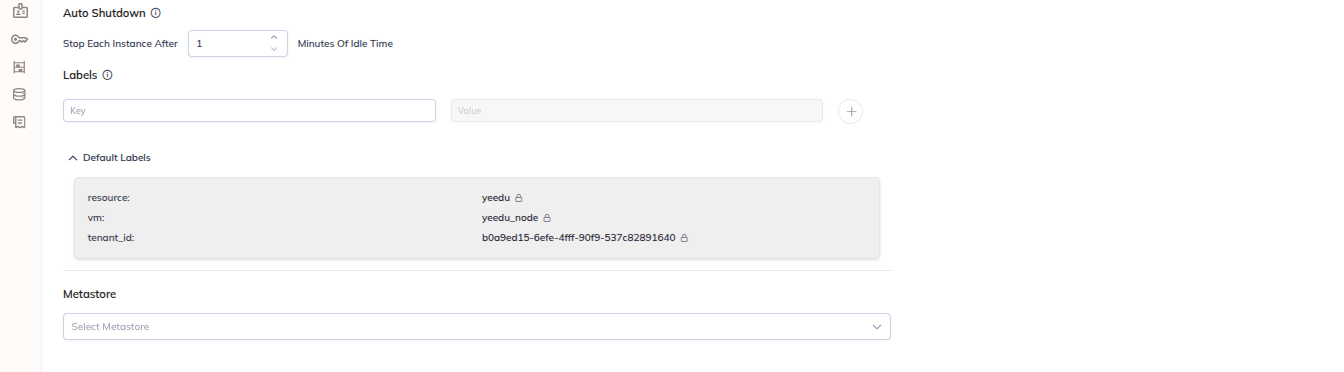
Labels
- Add labels for organization.
Default Labels
- These labels appear automatically without manual input
Metastore
- Select metastore from drop down
Mounts
- Attach a mount from the list
- Able to create a new mount

Dependencies
- Select required repositories or upload custom files.
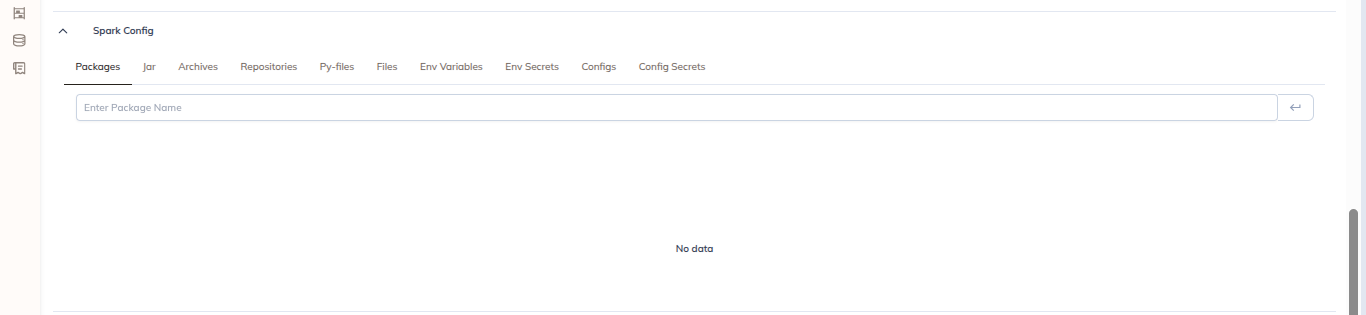
Spark Config
Supports:
- Packages & JARs
- Py-files
- Archives
- Repositories
- Environment variables
- Custom spark configs
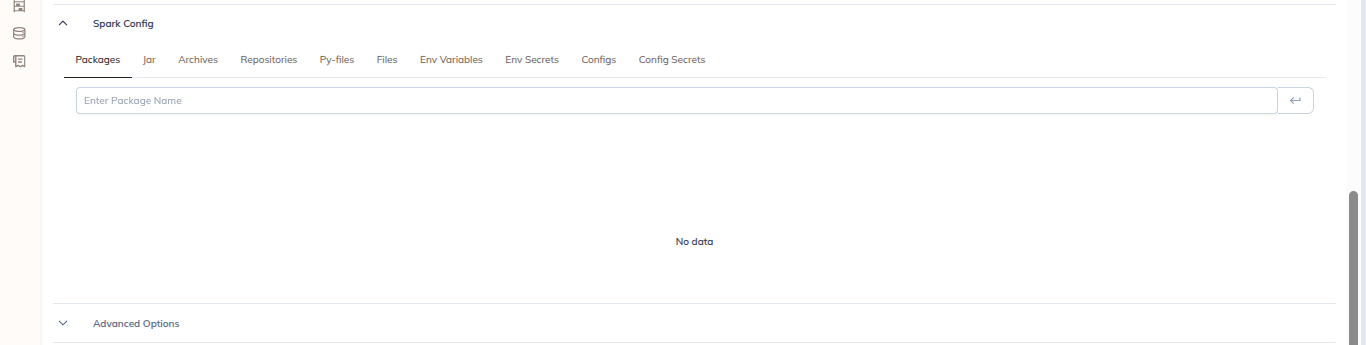
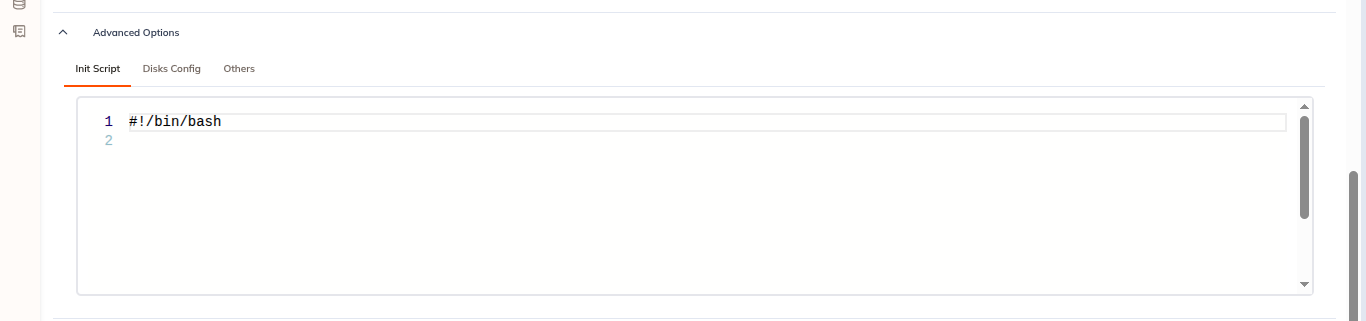
Advanced Options
- Init scripts
- Disk configuration
- Others
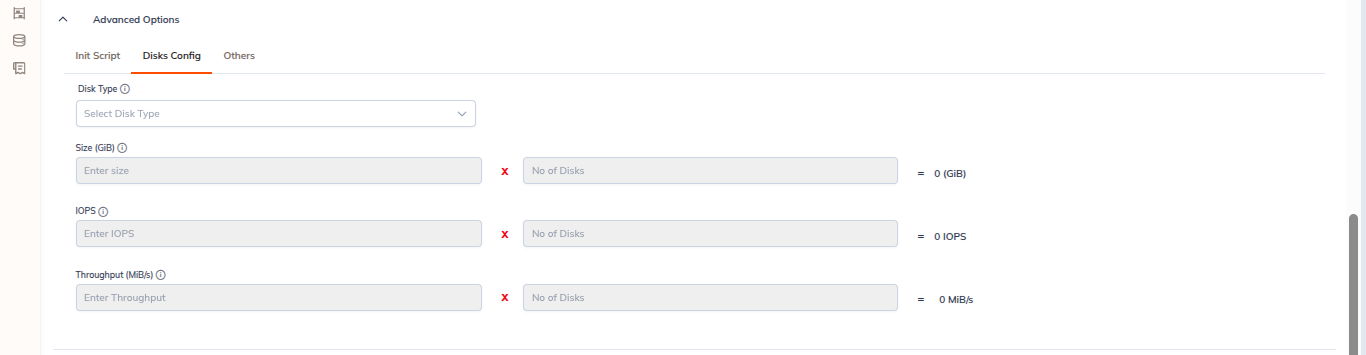
Disk Configuration (Advanced)
- Disk Type
- Size (GiB)
- IOPS
- Throughput (MBps)
- Multiplier (No. of disks)
Actions
- Reset: Clears all fields
- Create: Submits the cluster creation request
Backend bootstrap time: ~6–7 minutes
Ready to use in: ~1 minute after creation