Workspace JDBC, Access Management, and Secrets
We cover the last three tabs of a Workspace here: JDBC, Access Management, and Secrets.
JDBC
The JDBC tab provides interactive, pre-configured connection guides and connection details for querying clusters from BI tools and SQL clients (such as Power BI, Tableau, Metabase, DBeaver, and beeline) without requiring custom driver downloads.
Route:
/workspace/<id>/jdbc?page=1&limit=20
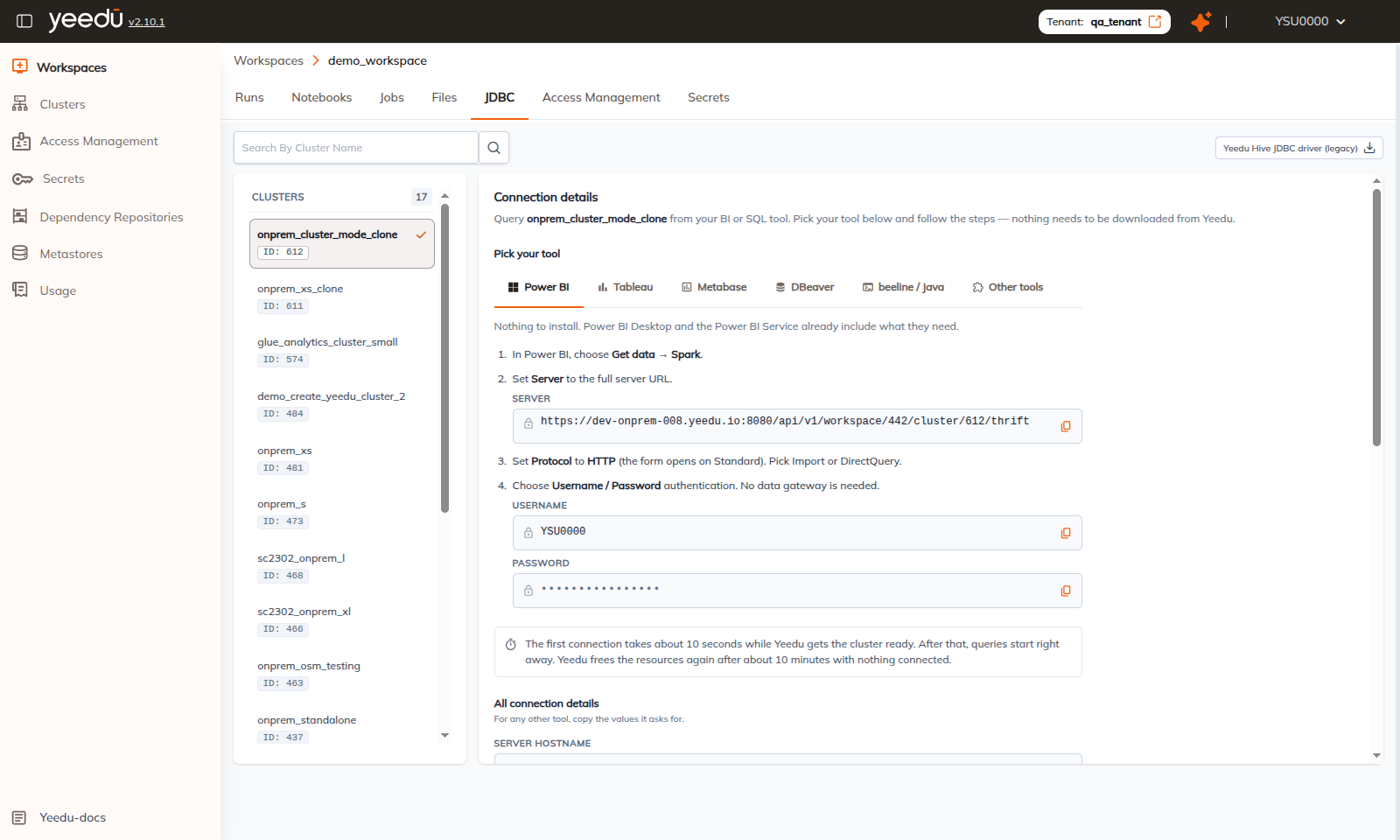
Layout Overview
The interface uses a master-detail layout:
-
Left Panel — Clusters List:
- Search By Cluster Name: Quickly filters available clusters.
- Cluster Cards: Lists all clusters in the workspace with their name, ID badge, and selection status. Click any cluster to display its connection details in the main panel.
- Shows total cluster count and supports vertical scrolling.
-
Top-Right Actions:
- Yeedu Hive JDBC driver (legacy): Download link for the legacy standalone Hive JDBC driver JAR (
hive-jdbc-3.1.3-standalone.jar) for older clients that specifically require Yeedu's custom JAR.
- Yeedu Hive JDBC driver (legacy): Download link for the legacy standalone Hive JDBC driver JAR (
-
Main Panel — Tool Integration Guides & Details:
- Displays instructions tailored to the selected tool under Pick your tool.
- Includes All connection details with one-click copy buttons for every connection parameter.
Pick Your Tool Guides
Select your client tool from the tabs to see step-by-step instructions pre-filled with the active cluster's endpoints and credentials:
| Tool Tab | Setup Instructions |
|---|---|
| Power BI | Native Spark connector — nothing to install. In Power BI, choose Get data → Spark, set Server to the full server URL (https://<host>:<port>/api/v1/workspace/<ws>/cluster/<cluster>/thrift), set Protocol to HTTP (Import or DirectQuery), and select Username / Password authentication. No on-prem data gateway needed. |
| Tableau | Choose Connect → Spark SQL, enter server hostname and port 8080, set Type to SparkThriftServer (Spark 1.1 and later), Authentication to Username and Password, Transport to HTTP, enter the HTTP path, and enable Require SSL. (Tableau Cloud requires no installation; Tableau Desktop prompts for the Spark driver on first use). |
| Metabase | Uses Metabase's built-in Spark SQL database type. Navigate to Admin → Databases → Add database → Spark SQL, set host, port 8080, database default, username, password, and paste ;ssl=true;transportMode=http;httpPath=/api/v1/workspace/<ws>/cluster/<cluster>/thrift into Additional JDBC connection string options. |
| DBeaver | Zero manual setup. In DBeaver, choose Database → New Database Connection → Apache Hive (DBeaver downloads the standard driver automatically on first connect). Select Connect by: URL, paste the JDBC URL, enter username and token password, then click Test Connection. |
| beeline / Java | Provides the complete beeline command with token pre-filled (beeline -u "<jdbc_url>" -n <username> -p <token>). For custom Java/Scala applications, pass the JDBC URL and credentials to DriverManager.getConnection. |
| Other tools | For Excel, Qlik, Alteryx, SSIS, Python, etc.: install a Spark ODBC driver (e.g. Simba/Databricks Spark ODBC driver), set Thrift transport to HTTP, enable SSL, and authenticate using username and token password. |
The initial connection takes approximately 10 seconds while Yeedu initializes the Thrift server on the cluster. Subsequent queries start immediately. When no clients remain connected, Yeedu automatically releases cluster resources after approximately 10 minutes of inactivity.
All Connection Details
Below the tool guides, the All connection details section provides granular connection properties with dedicated copy buttons:
| Property | Value / Format | Description |
|---|---|---|
| SERVER HOSTNAME | hostname (e.g. demo.yeedu.io) | Fully qualified domain name or IP of the Yeedu server. |
| PORT | 8080 (or configured gateway port) | Gateway port for HTTP Thrift connections. |
| HTTP PATH | /api/v1/workspace/<workspace_id>/cluster/<cluster_id>/thrift | HTTP endpoint identifying the workspace and cluster. |
| TRANSPORT MODE | HTTP | Transport protocol (always HTTP for Yeedu Thrift endpoints). |
| SSL | Enabled / Disabled | Indicates whether TLS/SSL is required for the connection. |
| USERNAME | Username (e.g. YEEDU-DEMO-USER) | Signed-in Yeedu username. |
| PASSWORD / TOKEN | Masked session token | Yeedu authentication token used as the connection password. |
| SERVER URL | https://<host>:<port>/api/v1/workspace/<ws>/cluster/<cluster>/thrift | Full HTTP URL used by tools such as Power BI that take a single Server field. |
| JDBC URL | jdbc:hive2://<host>:<port>/default;ssl=true;transportMode=http;httpPath=... | Standard Hive JDBC connection string for DBeaver, beeline, and JDBC drivers. |
When SSL is enabled, the client machine must trust the server's TLS certificate, or connection attempts will fail during the TLS handshake. For self-signed certificates, configure the truststore or use ignoreHttpVerify=true where supported.
Access Management
The Access Management tab grants Workspace-level permissions to groups and to individual users.
Route:
/workspace/<id>/workspace-access-management?workspaceId=<id>
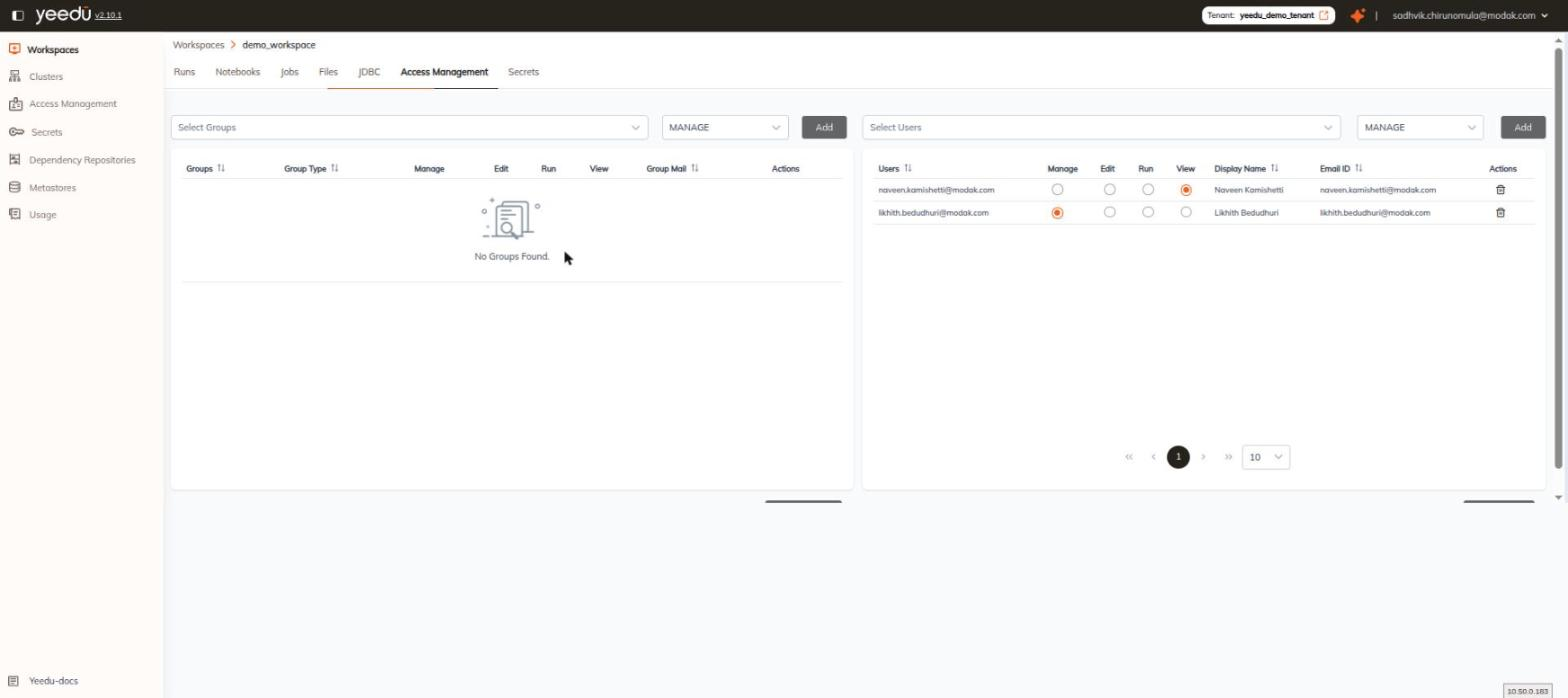
The tab is split into two side-by-side panels — Groups on the left and Users on the right. Each panel has its own add row and its own save button, so we save group and user grants independently.
Permission model
Each panel exposes four permission columns — Manage, Edit, Run, and View. They're rendered as radio buttons, so a principal holds exactly one level; the levels are mutually exclusive, not additive.
| Level | Meaning |
|---|---|
MANAGE | Everything EDIT allows, plus updating the Workspace itself, making it Active or Inactive, and managing its access. |
EDIT | Everything RUN allows, plus creating, updating, activating and inactivating Jobs and Notebooks, and importing into the Workspace. |
RUN | Everything VIEW allows, plus running and stopping Jobs and Notebooks. |
VIEW | Read Job and Notebook configurations and run history. |
This is the same permission enumeration we use for tenant-level access management.
Groups panel
The add row consists of a Select Groups dropdown, a permission dropdown that defaults to MANAGE, and an Add button. Pick a group, choose its permission level, and click Add to place it in the table below.
| Column | Description |
|---|---|
| Groups | Name of the group. Sortable. |
| Group Type | Type of the group. Sortable. |
| Manage | Radio button granting MANAGE. |
| Edit | Radio button granting EDIT. |
| Run | Radio button granting RUN. |
| View | Radio button granting VIEW. |
| Group Mail | Mail address associated with the group. Sortable. |
| Actions | Delete icon that removes the group's access. |
When no groups have been granted access the table shows No Groups Found. Click Update Groups at the foot of the panel to save your changes.
Users panel
The add row consists of a Select Users dropdown, a permission dropdown that defaults to MANAGE, and an Add button.
| Column | Description |
|---|---|
| Users | Username of the user. Sortable. |
| Manage | Radio button granting MANAGE. |
| Edit | Radio button granting EDIT. |
| Run | Radio button granting RUN. |
| View | Radio button granting VIEW. |
| Display Name | Display name of the user. Sortable. |
| Email ID | Email address of the user. |
| Actions | Delete icon that removes the user's access. |
The Users panel is paginated, with page controls and a page-size dropdown in the footer. Click Update Users at the foot of the panel to save your changes.
Adding, changing, or deleting a row only takes effect once you click Update Groups or Update Users for that panel.
Secrets
The Secrets tab is the Workspace-scoped secrets list, pre-filtered to the current Workspace.
Route:
/workspace/<id>/secrets
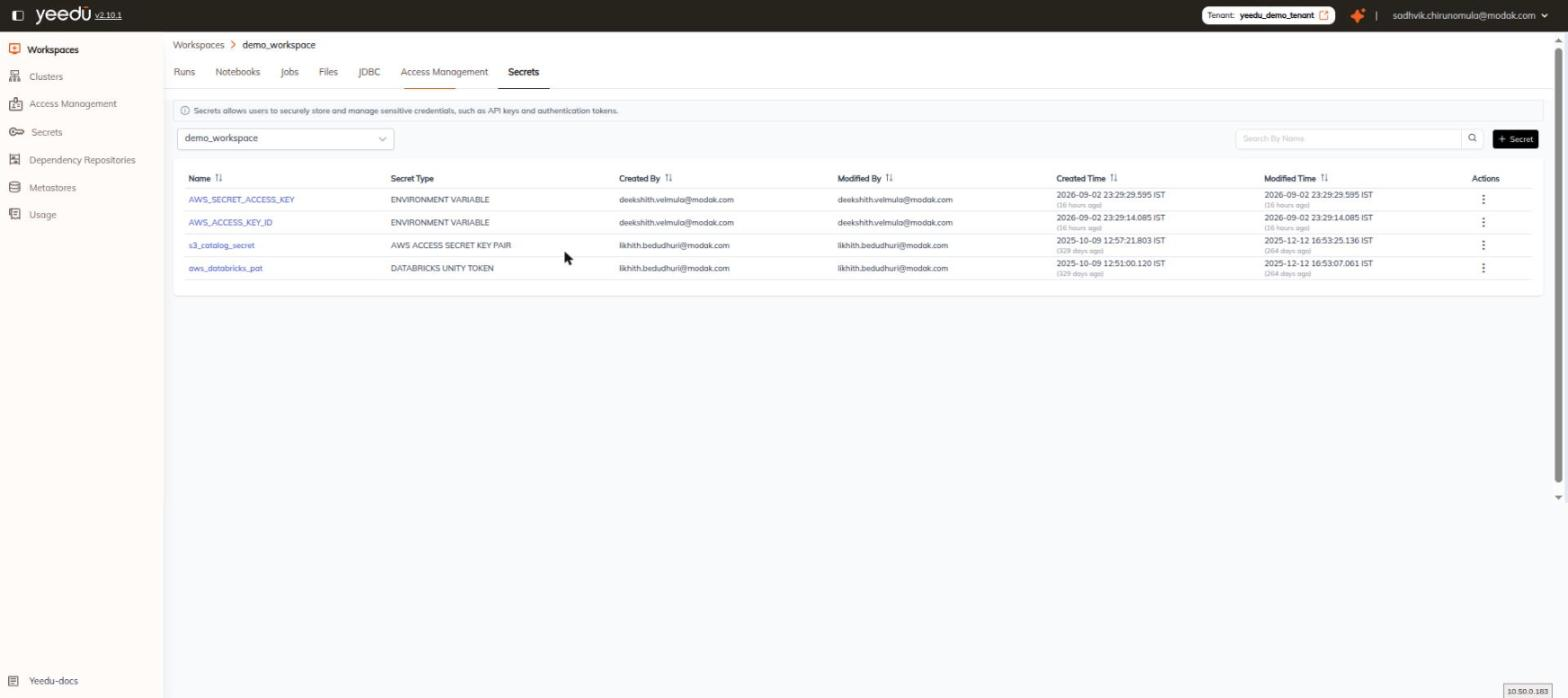
It's the same component as Secrets ▸ Workspace at tenant level, with the Workspace selector pinned to the Workspace you're in. It has the same info bar, the same Search By Name box, and a + Secret button at the top right of the toolbar. The row Actions kebab carries exactly two entries, Edit and Delete, the same two it carries on the tenant-level list, and the seven columns below are the same seven as well.
| Column | Description |
|---|---|
| Name | Name of the secret. Sortable. |
| Secret Type | The secret's type, rendered verbatim — for example ENVIRONMENT VARIABLE, AWS ACCESS SECRET KEY PAIR, or DATABRICKS UNITY TOKEN. |
| Created By | User who created the secret. Sortable. |
| Modified By | User who last modified the secret. Sortable. |
| Created Time | Creation timestamp. Sortable. |
| Modified Time | Last-modification timestamp. Sortable. |
| Actions | Kebab menu with exactly two entries — Edit and Delete. |