Catalogs Explorer
Catalogs Explorer provides an interactive, visual catalog browser directly within Yeedu. It allows you to explore databases, schemas, and tables registered in your metastores, inspect column data types and comments, filter assets, and automatically generate ready-to-run queries in SQL, PySpark, and Scala.
Whether your metastore is powered by Databricks Unity Catalog, Apache Hive, or AWS Glue, Catalogs Explorer lets you inspect metadata without switching tools or launching a notebook.
Prerequisites
Before using Catalogs Explorer, ensure you have:
- Access to a Yeedu tenant with at least the User role.
- At least one active metastore configured in Metastores (such as Hive Metastore, AWS Glue, or Databricks Unity Catalog).
- A valid personal user secret associated with your account for the target metastore type (such as a
HIVE BASIC,AWS ACCESS SECRET KEY PAIR, orDATABRICKS UNITY TOKENsecret).
Catalogs Explorer browses metadata using your individual user secret. Workspace-level secrets do not apply when browsing in Catalogs Explorer.
Accessing Catalogs Explorer
To open the Explorer for any metastore:
- In the tenant left navigation, click Metastores (
/tenant/<tenant-id>/meta-store). - Locate the metastore you want to explore in the dashboard.
- Click the metastore name link (or select Edit from the row's Actions menu
...). - In the metastore management view, select the Explorer tab (
/tenant/<tenant-id>/<metastore-id>/edit-meta-store/explorer).
Catalog and schema hierarchy
Catalogs Explorer automatically adapts its navigation tree to the metastore technology:
| Metastore type | Hierarchy levels | Description |
|---|---|---|
| Databricks Unity Catalog | 3-tier: Catalog → Schema → Table | Browse Unity catalogs, navigate into schemas (databases), and view individual managed or external tables. |
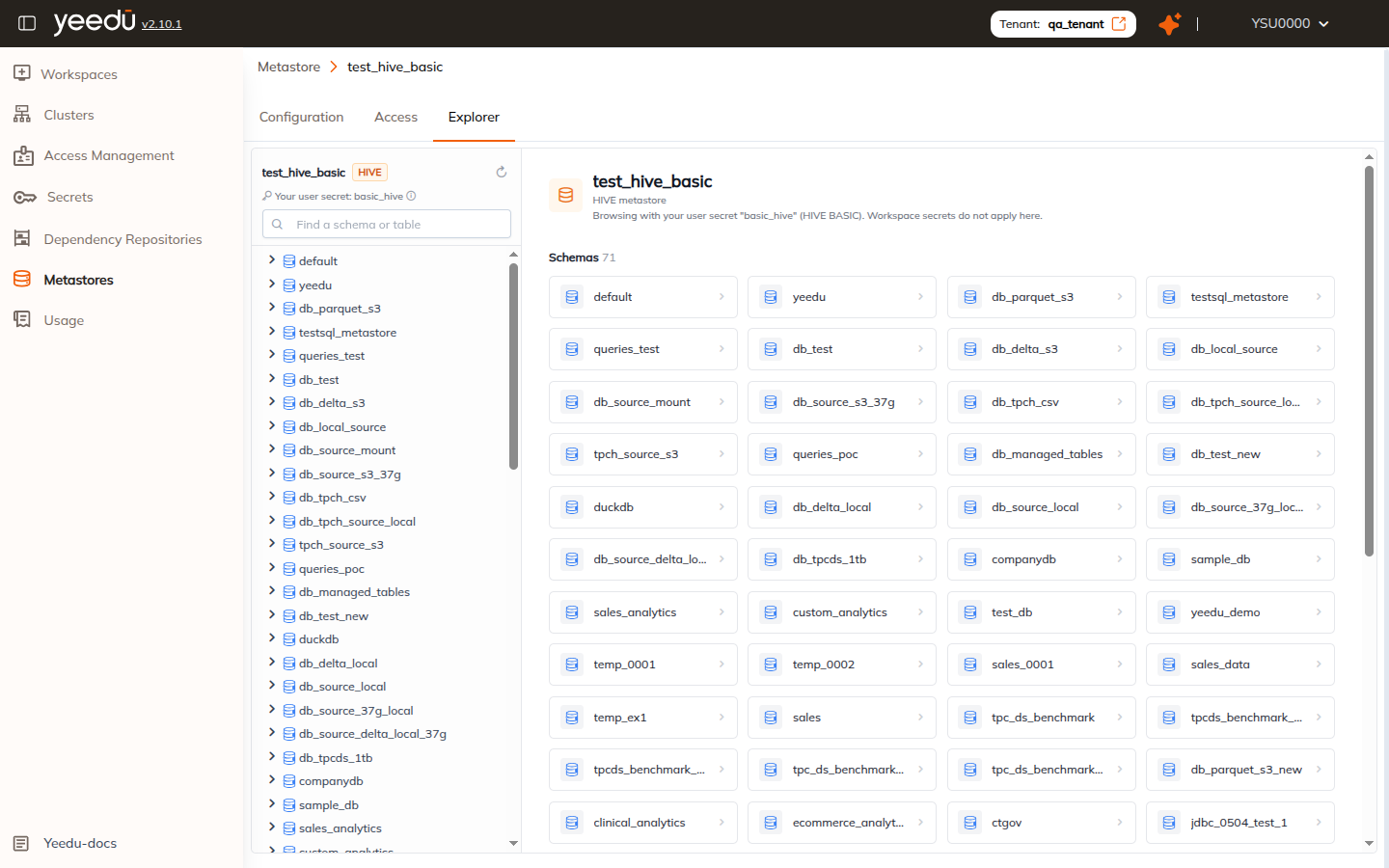
| Apache Hive | 2-tier: Schema → Table | Browse Hive schemas/databases directly, then drill into managed or external tables. |
| AWS Glue | 2-tier: Database → Table | Browse AWS Glue databases and view underlying tables. |
Unity Catalog 3-tier browsing
For Databricks Unity metastores, the left navigation and the main explorer grid display all available catalogs:
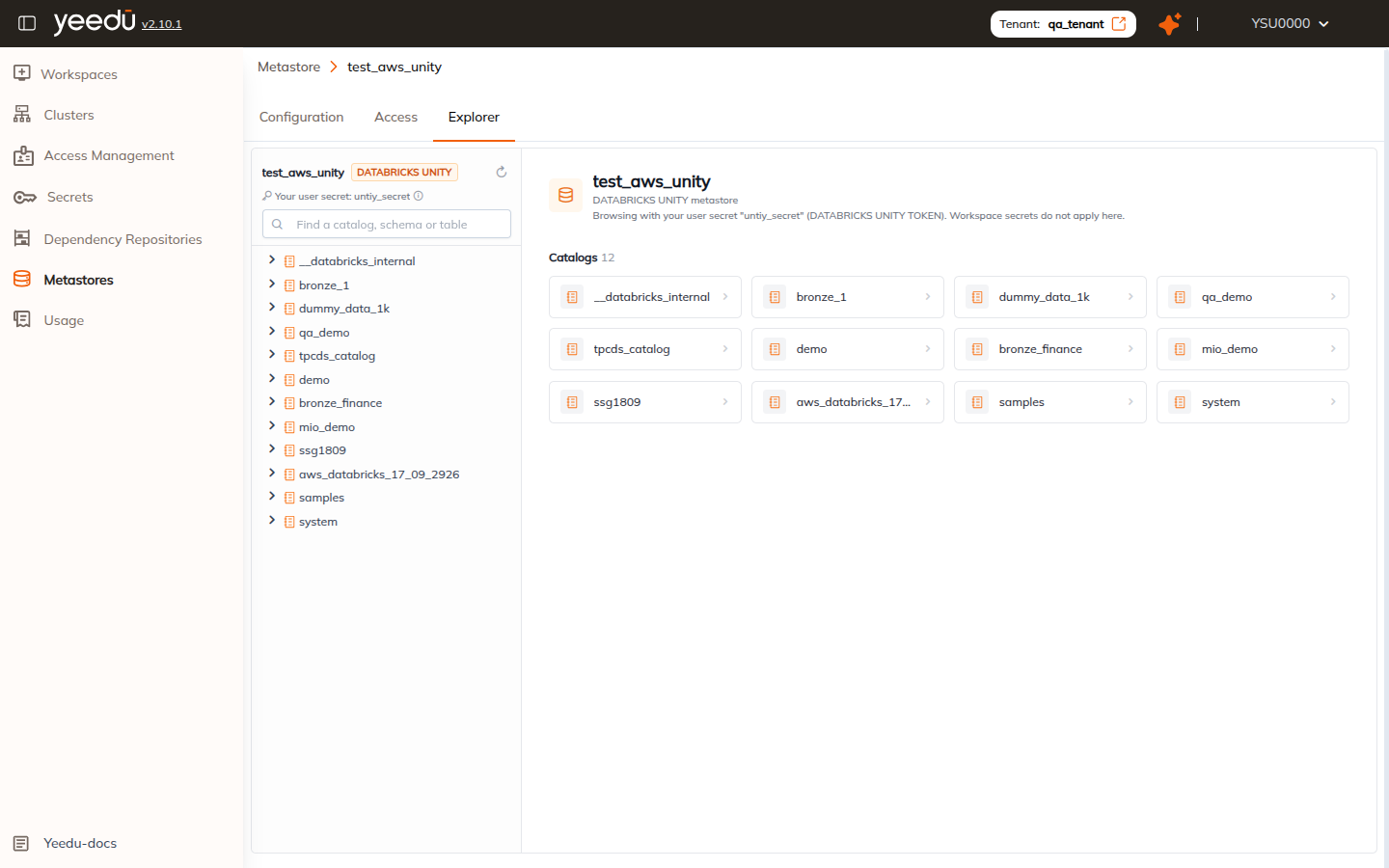
Clicking a catalog displays its schemas, which in turn contain its tables.
AWS Glue Catalog browsing
For AWS Glue metastores, the left navigation and main grid display the registered Glue databases and schemas:
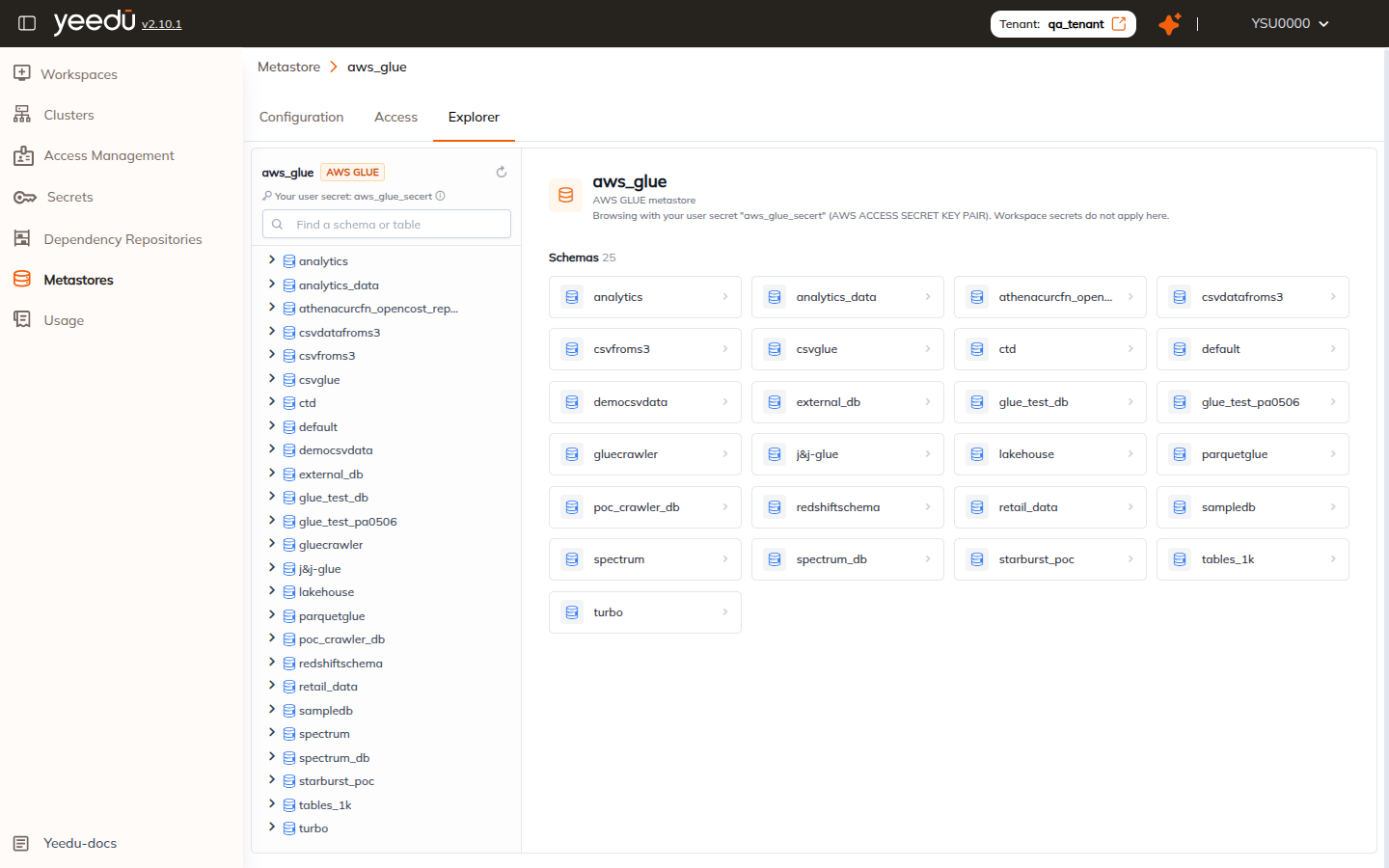
Clicking any schema opens its table list and allows you to inspect column definitions, comments, and table properties.
Key features
1. User secret indicator
At the top of the left sidebar, the Explorer displays the secret currently used to authenticate:
Your user secret: <secret_name> (<SECRET_TYPE>)
This ensures full auditability and enforces that users only browse data schemas their personal credentials are authorized to view.
2. Live search and tree navigation
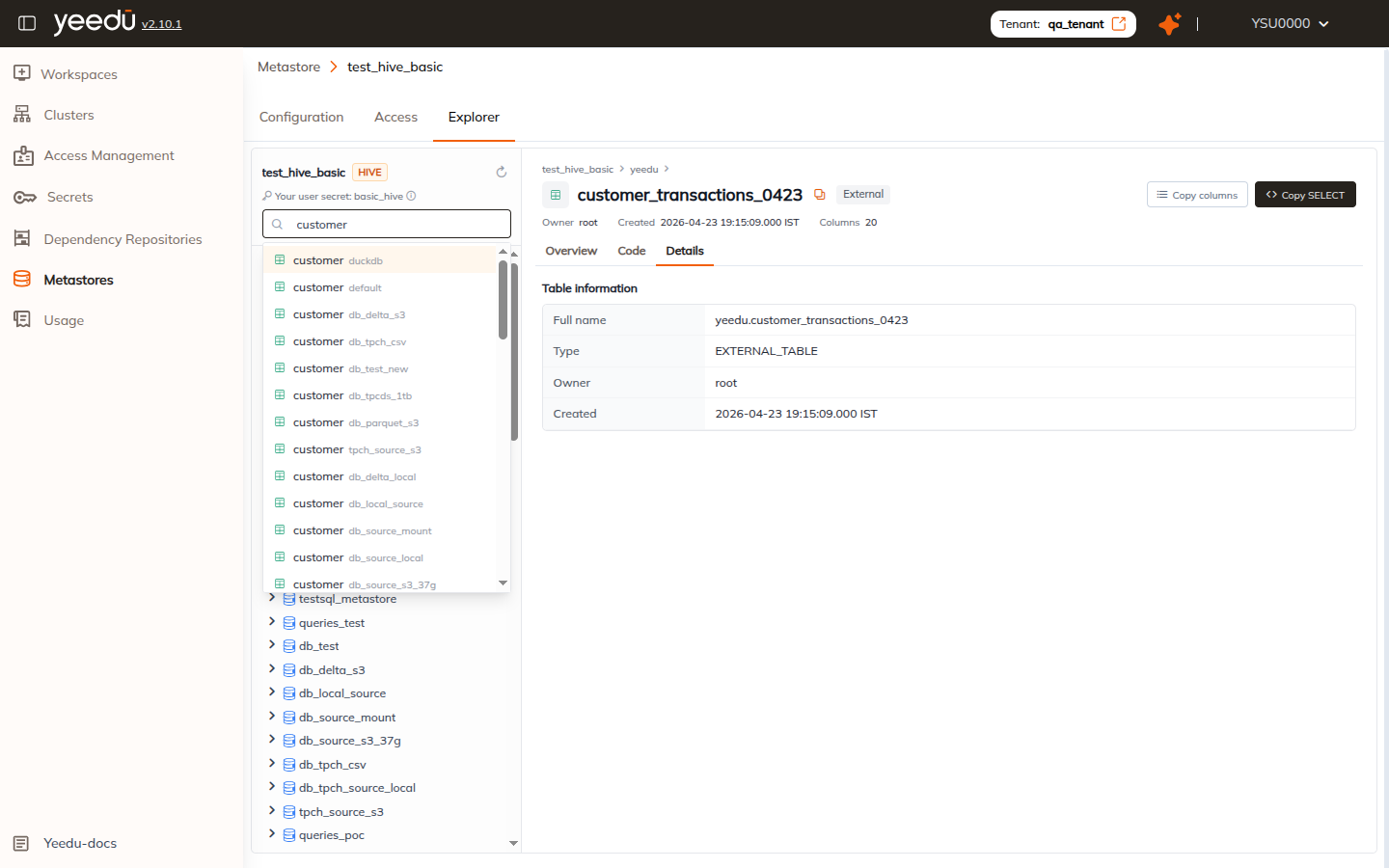
The left panel includes a quick search input (Find a schema or table or Find a catalog, schema or table):
- Type any keyword to instantly search across all schemas and tables in the metastore.
- Matching tables and their parent schemas appear in a live results dropdown.
- Click any search result to jump directly to that table's view.
- Click the Refresh button beside the metastore title to synchronize and reload the latest schema definitions from the remote metastore.
Browsing schemas and tables
When you select a schema from the sidebar or the main grid, the Explorer opens the schema view:
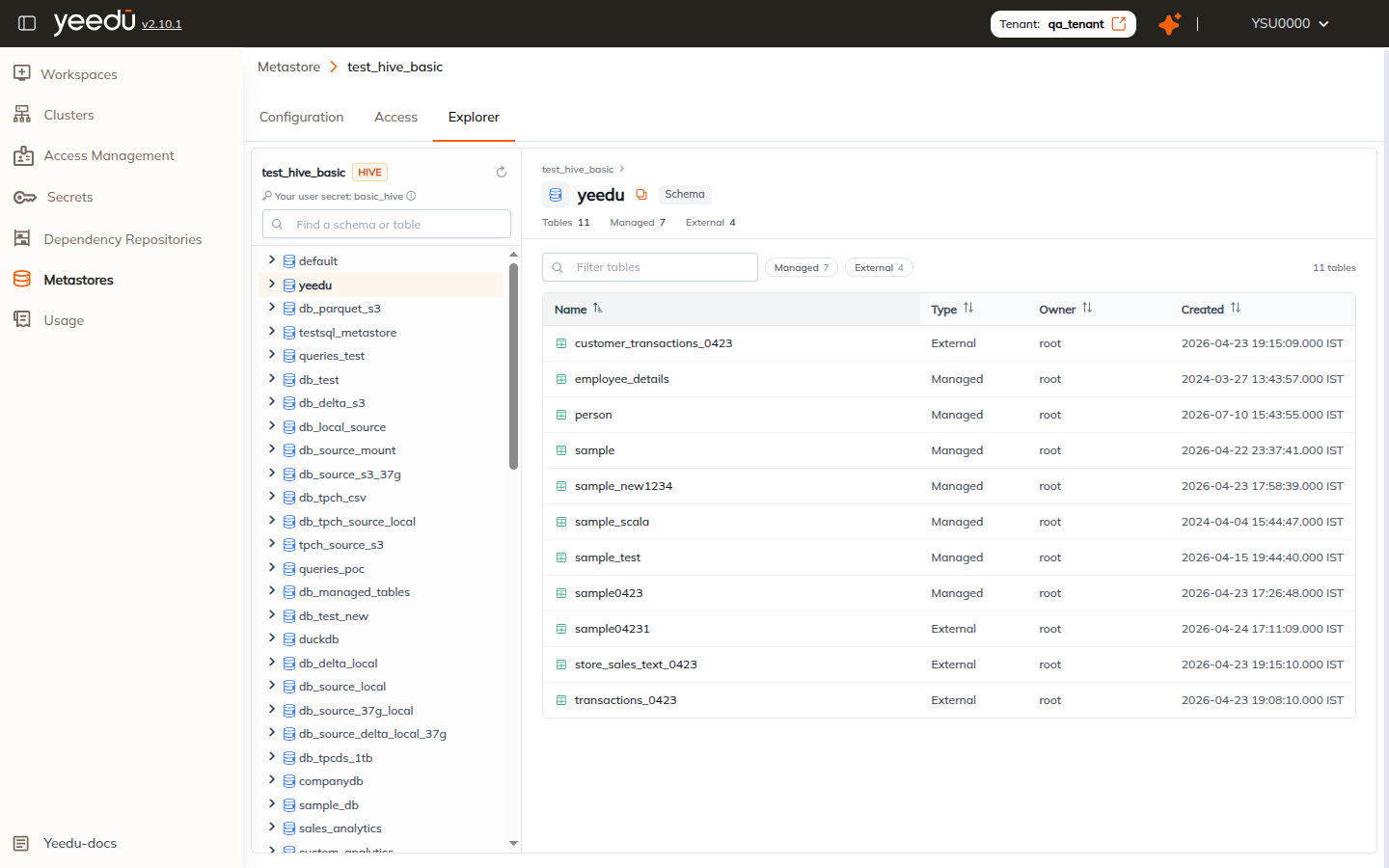
The schema view includes:
- Breadcrumb navigation: Track your current location (e.g.,
test_hive_basic > yeedu) and jump back to higher levels at any time. - Copy full name button: Copies the qualified schema name to your clipboard.
- Schema metrics: Summary badges showing total tables, managed tables, and external tables.
- Filter tables input: Quickly filter tables within the active schema by name.
- Type filters: Click Managed or External pills to filter the table list by storage type.
- Table list: Displays table Name, Type (
ManagedorExternal), Owner, and Created timestamp.
Click any table row to open the detailed table view.
Inspecting table details
The table view provides three dedicated tabs: Overview, Code, and Details.
Overview tab
The Overview tab displays the column structure and schema information:
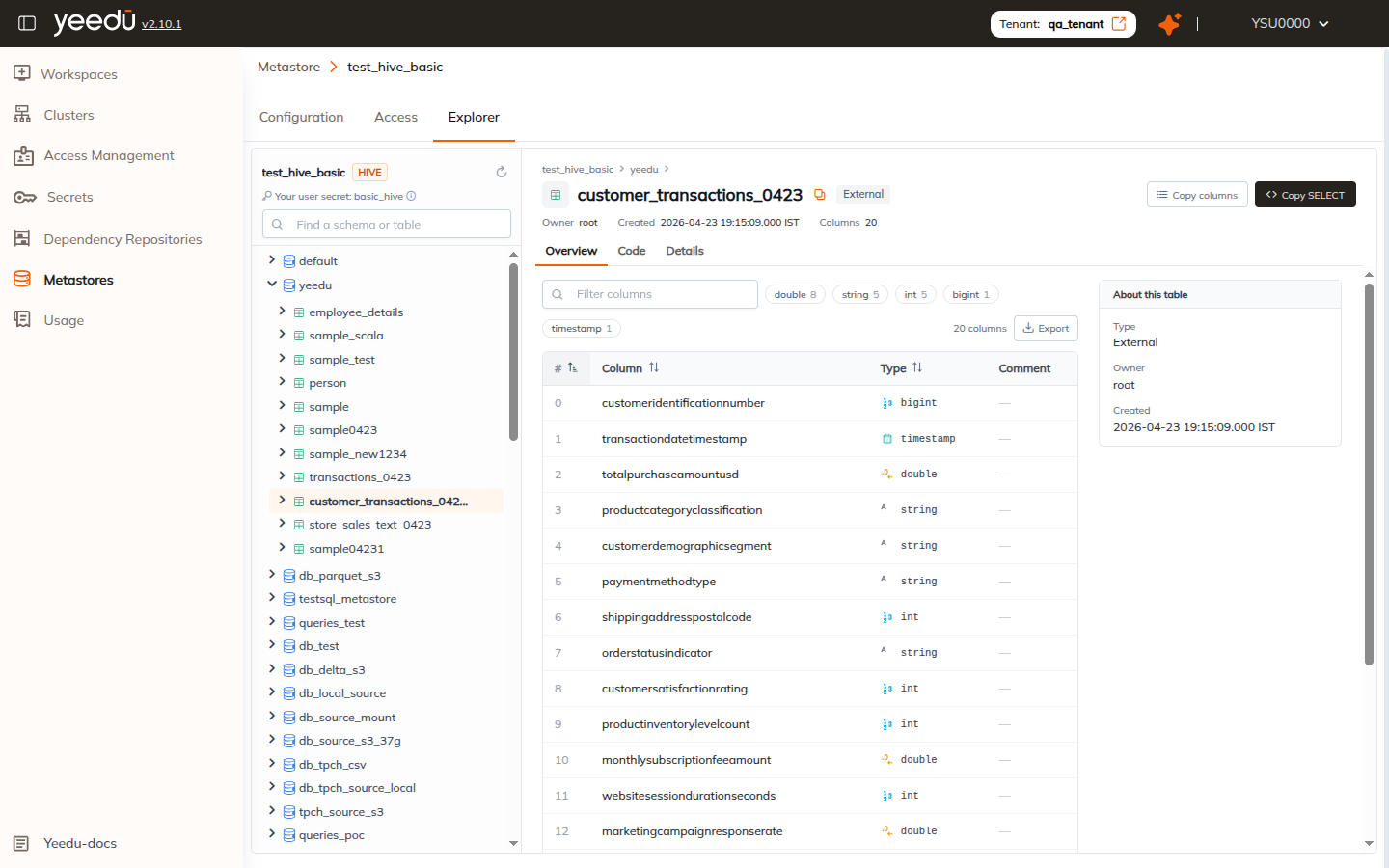
- Column schema table:
#: Column index (0-based order).- Column: Column name.
- Type: Data type with distinctive type icons (e.g.,
int,bigint,string,double,timestamp). - Comment: Description or comment attached to the column in the metastore.
- Column search: Use the Filter columns search box to quickly find specific columns in large tables.
- Data type filters: Filter columns by clicking type pills (e.g.,
double 8,string 5,int 5). - Export button: Download or export the table column definitions.
- About this table panel: Summary sidebar showing the table's storage Type, Owner, and Created date.
Code tab
The Code tab automatically generates pre-formatted code templates tailored to the selected table, columns, and metastore configuration:
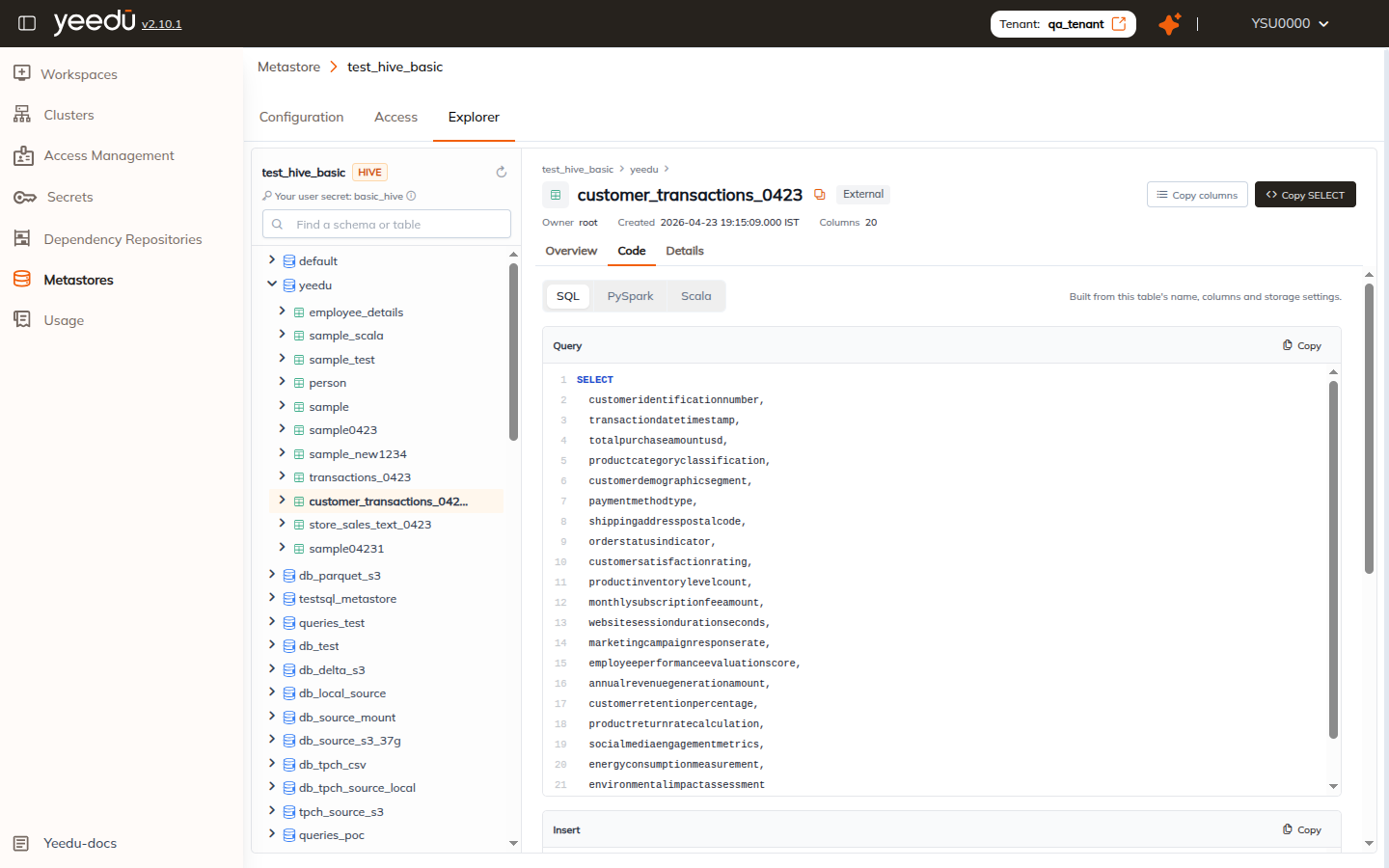
You can toggle between three languages:
1. SQL
Generates three standard statements ready to copy into SQL notebooks:
- Query:
SELECTstatement with all column names explicitly enumerated. - Insert:
INSERT INTOtemplate matching column positions from a source table. - Inspect:
DESCRIBE TABLE EXTENDEDstatement for deeper catalog analysis.
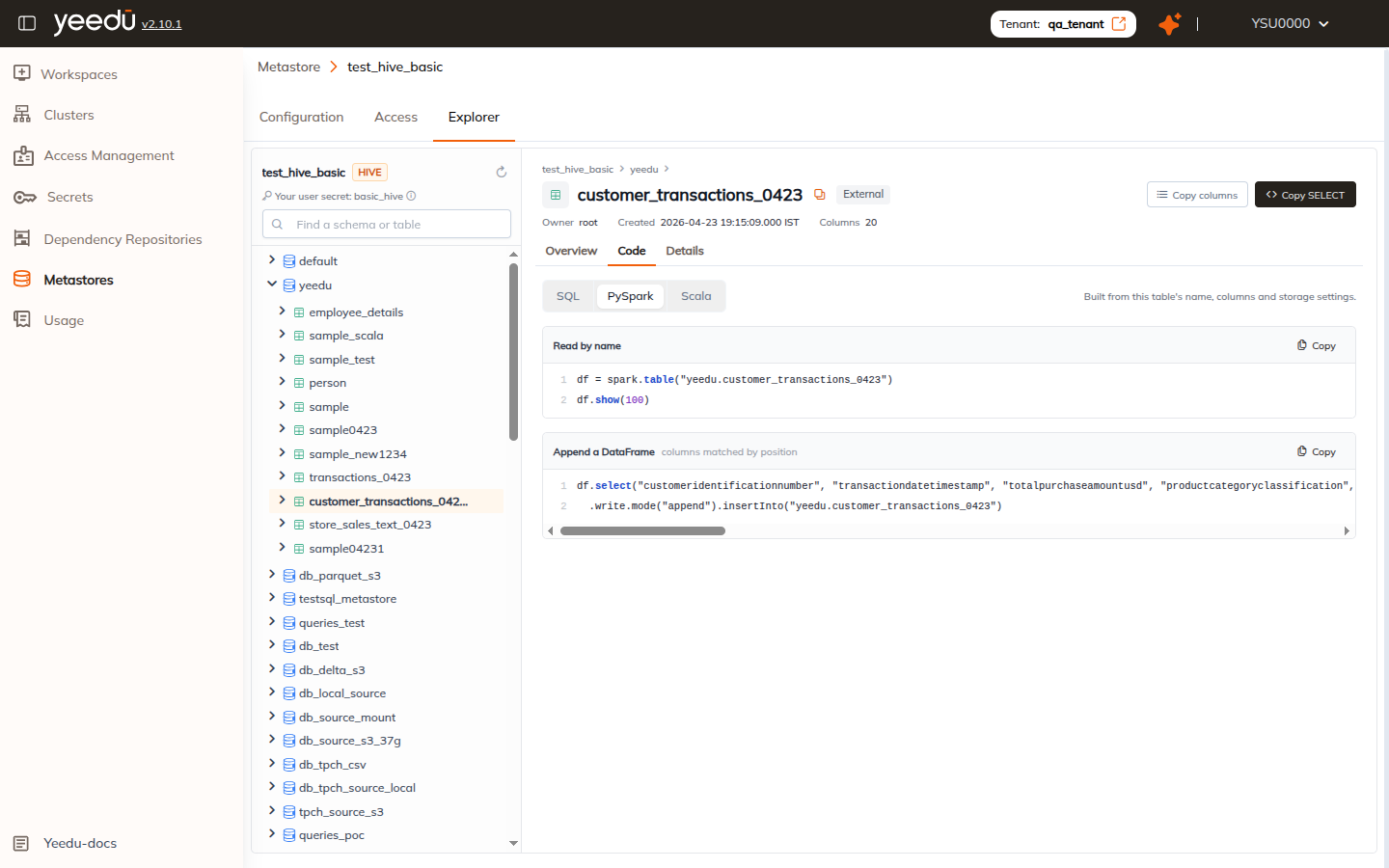
2. PySpark
Generates Python snippets using the Spark DataFrame API:
- Read by name:
df = spark.table("<schema>.<table>")
df.show(100) - Append a DataFrame:
df.select("<col1>", "<col2>", ...) \
  .write.mode("append").insertInto("<schema>.<table>")
3. Scala
Generates Scala snippets for Apache Spark:
- Read by name:
val df = spark.table("<schema>.<table>")
df.show(100) - Append a DataFrame:
df.select("<col1>", "<col2>", ...)
  .write.mode("append").insertInto("<schema>.<table>")
Each code block includes a Copy button to copy the code directly into your clipboard.
Details tab
The Details tab provides technical metadata about the table:
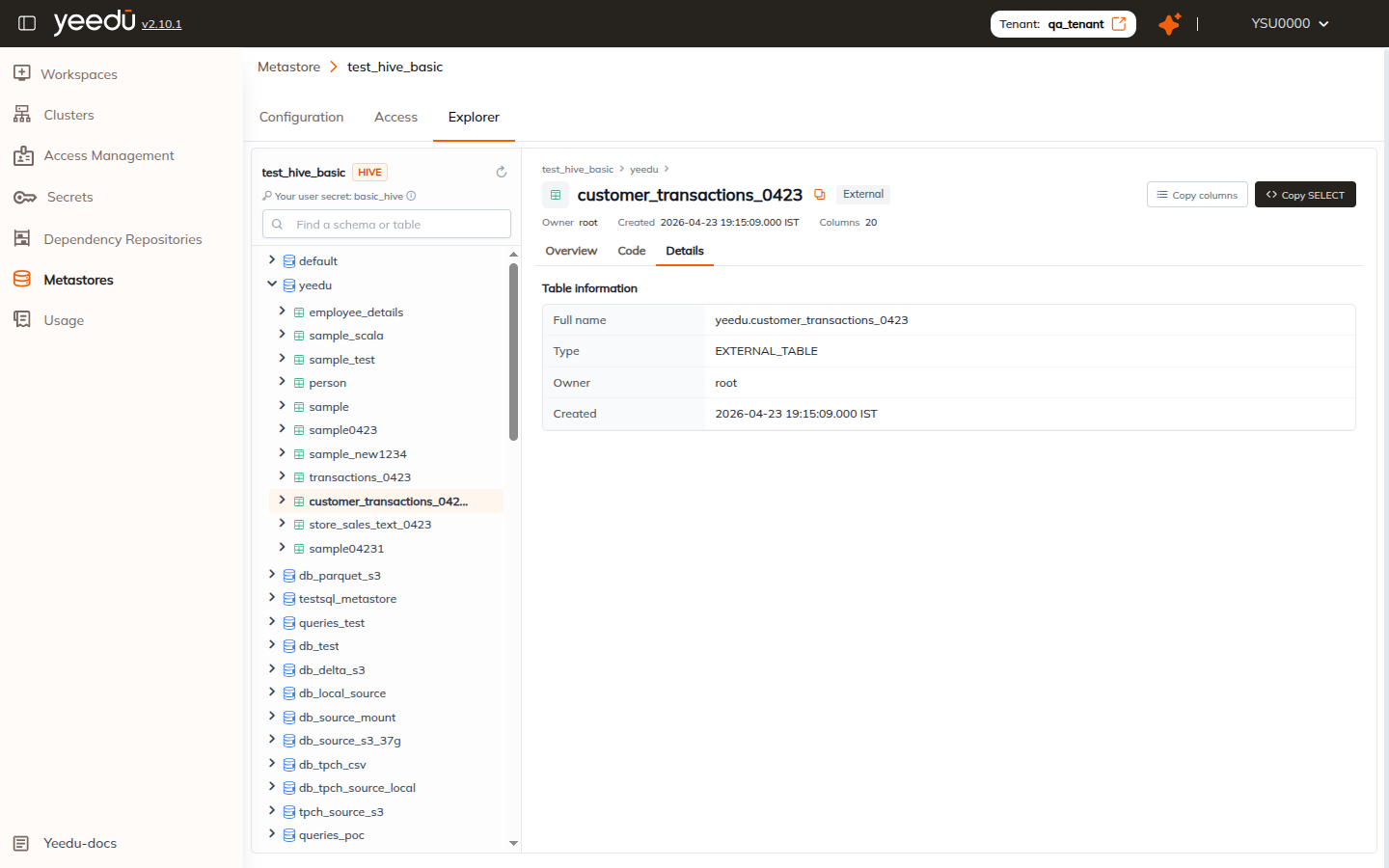
Information listed includes:
- Full name: Qualified object identifier (e.g.,
yeedu.customer_transactions_0423). - Type: Internal catalog type (e.g.,
MANAGED_TABLE,EXTERNAL_TABLE). - Owner: Metastore owner identity (e.g.,
root). - Created: Timestamp when the table was registered.